
🔒 Auto-closing a conversation and a new deal via a secret phrase
This feature helps you automatically close a conversation in a Bitrix24 Open Channel once the work with the customer is done. As soon as the deal moves to a final stage (for example «Deal won» or «Deal lost»), a Bitrix24 robot sends a special secret phrase and WazzaBee closes the conversation automatically.
Thanks to that, the customer's next message starts a new conversation and creates a new deal: the correspondence no longer piles into the old, already closed deal.
Works in every channel: WhatsApp (QR and Business API), Telegram (bot and personal), Instagram, Facebook Messenger and OLX: there is nothing to set up separately for each one.
Who needs this: anyone who used other messenger aggregators before, where a secret phrase was used to close a conversation. WazzaBee has the same mechanism.
⚙️ How it works
- The agent finishes the work and moves the deal to a final stage.
- A Bitrix24 robot sends the secret phrase
#close_dialogto the Open Channel. - WazzaBee intercepts the phrase: it is never sent to the customer.
- The current conversation in the Open Channel is closed automatically.
- When the customer writes again, a new conversation starts and a new deal is created.
📋 What you need
| Requirement | Details |
|---|---|
| «Open Channel» mode | The feature only works through Bitrix24 Open Channels. Turn the Open Channel on for your channel in the WazzaBee connector settings. |
| Creating a deal for each new conversation | So that the next message creates a new deal, turn this on in the Bitrix24 Open Channel settings (the CRM settings section). |
| A robot on the final stage | Set up a robot that sends the secret phrase when the deal moves to the stage you need. |
🤖 Step 1: Set up the robot in Bitrix24
- Open the robot settings for your pipeline: CRM → Settings → Robots and triggers (or straight from the deals pipeline).
- On the «Deal won» and «Deal lost» stages, add the action «Send a message to the Open Channel».
- In the message text put exactly this:
#close_dialog
Here is what a correctly configured robot looks like: the message field contains only the phrase #close_dialog, and the «Hidden message» checkbox is cleared:
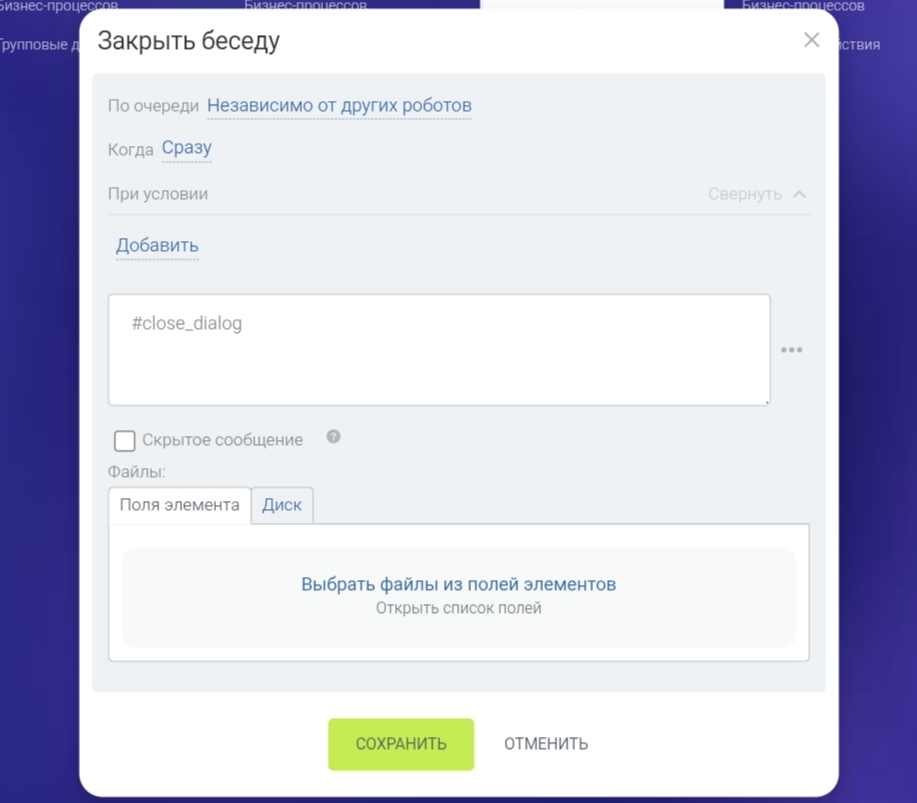
Do not tick the «Hidden message» checkbox. A hidden message is visible only to employees inside Bitrix24: it never reaches WazzaBee, so the conversation will not be closed.
Important: the phrase must be sent as a separate message and character for character: #close_dialog, with no extra text, spaces or symbols. If the message contains anything besides the phrase, the conversation will not close (this is a safeguard, so that an agent's regular text never ends a conversation by accident).
🔗 Step 2: Check your settings in WazzaBee
In your WazzaBee dashboard → the «Connectors» section → «Bitrix24» → the settings of the channel you need:
- Make sure «Open Channel» is enabled for the channel.
- Channel synchronization must be on.
Hint: how to enable an Open Channel is described in detail in the article «Connecting Bitrix24» (Step 4: Set up the integration).
⚠️ Important: one setting can change the person responsible
The robot sends the secret phrase to the Open Channel on behalf of a specific employee, usually the one who created that robot. To Bitrix24 it looks as if that employee wrote into the conversation and took it over from the agent who was handling it.
If the Open Channel settings have the option «Automatically change the person responsible when the conversation is transferred to another agent» turned on, Bitrix24 will then reassign the deal to the robot's author. In the deal history it looks like this: first the «Open Channel chat» activity is reopened («Completed» → «Pending»), then the person responsible changes.
This is Bitrix24's own behavior, not WazzaBee's. The service phrase lands in the conversation by Bitrix24's own means, and the person responsible changes before WazzaBee even learns about the message. We receive the phrase afterwards and only close the conversation.
How to fix it, either of two ways:
- The simplest one: the settings of that Open Channel → the «Queue» section → clear the «Automatically change the person responsible when the conversation is transferred to another agent» checkbox. The robot keeps working, conversations keep closing, and the deal stays with whoever was handling it.
- Or: configure the robot so that it sends the phrase on behalf of the person responsible for the deal. Then there is no takeover and you do not need to touch the channel settings at all.
✅ How to check that everything works
- Take a test conversation with a customer.
- Move the deal to the final stage where the robot sits.
- The conversation in the Open Channel should close automatically, and the
#close_dialogphrase will not reach the customer. - Write from the test number once more: a new conversation and a new deal should be created.
❓ Frequently asked questions
| Question | Answer |
|---|---|
Will the customer see the #close_dialog phrase? | No. WazzaBee intercepts it before sending: the customer never receives it. |
| Can it be used without Open Channels? | No. The mechanism only works in Open Channel mode: that is the only place where a «conversation» exists to be closed. |
| What if an agent types the phrase into a chat by accident? | The conversation closes only if the whole message is exactly #close_dialog. The phrase inside regular text closes nothing. |
| Which stage should the robot sit on? | Any final one: usually «Deal won» and «Deal lost». It can be any stage where the conversation counts as finished. |
| Why does the person responsible for the deal change when the robot fires? | That is done by Bitrix24, not WazzaBee: see the «Important: one setting can change the person responsible» section above. In the Open Channel settings, clear the «Automatically change the person responsible when the conversation is transferred to another agent» checkbox. |
| Which channels does it work in? | All channels connected through a Bitrix24 Open Channel: WhatsApp (QR and Business API), Telegram (bot and personal), Instagram, Facebook Messenger, OLX. |
Need help with the setup? Write to support, we will help you configure the robot and the Open Channel.