
🌐 Connecting WhatsApp Business API (WABA): the recommended way
WABA is the official channel from Meta. The number does not get banned for normal work with customers, template broadcasts are available, and so is the company profile. Connecting takes 15 minutes.
What WABA is
WABA (WhatsApp Business API) is the official way to connect WhatsApp for business. Unlike a QR code connection, it works through Meta's own API: the account is legitimate, conversations run on behalf of the company, and bulk messages are allowed.
How WABA differs from a QR connection
| WhatsApp QR | WABA (recommended) | |
|---|---|---|
| Connection | 1–2 minutes (scanning a QR code) | 15 minutes (through a Facebook account) |
| Broadcasts | ❌ Prohibited by Meta's rules | ✅ Allowed through approved templates |
| Ban risk | ⚠️ High: Meta bans such numbers en masse | ✅ Low if you follow the rules |
| Company profile | ❌ None | ✅ Logo, description, category, address, website |
| Message templates | ❌ None | ✅ HSM templates approved by Meta |
| Limit on first messages | There is no official limit, but a number gets banned for bulk sending | 250 recipients per day at the start, then growth to 2,000 and beyond |
What to prepare before connecting
Before you start, make sure you have:
- ✅ A Facebook account: a personal one, you will use it to log in to Meta Business Manager;
- ✅ A business account in Meta: an existing one, or created right during the connection process;
- ✅ A phone number that is free from regular WhatsApp, with access to SMS or incoming calls.
Important about the number. If it is already used in regular WhatsApp on a phone, you need to free it up: WhatsApp → Settings → Account → Delete account. Wait 3 minutes and continue the connection. If you cannot afford to lose the conversations and the app, connect through Coexistence: the number will keep working on the phone.
ℹ️ Business verification is not needed at the start. The number connects and works without it. You will need it later to raise the limit above 250 recipients per day: details are in the channel limits and tier section.
📱 Step-by-step connection
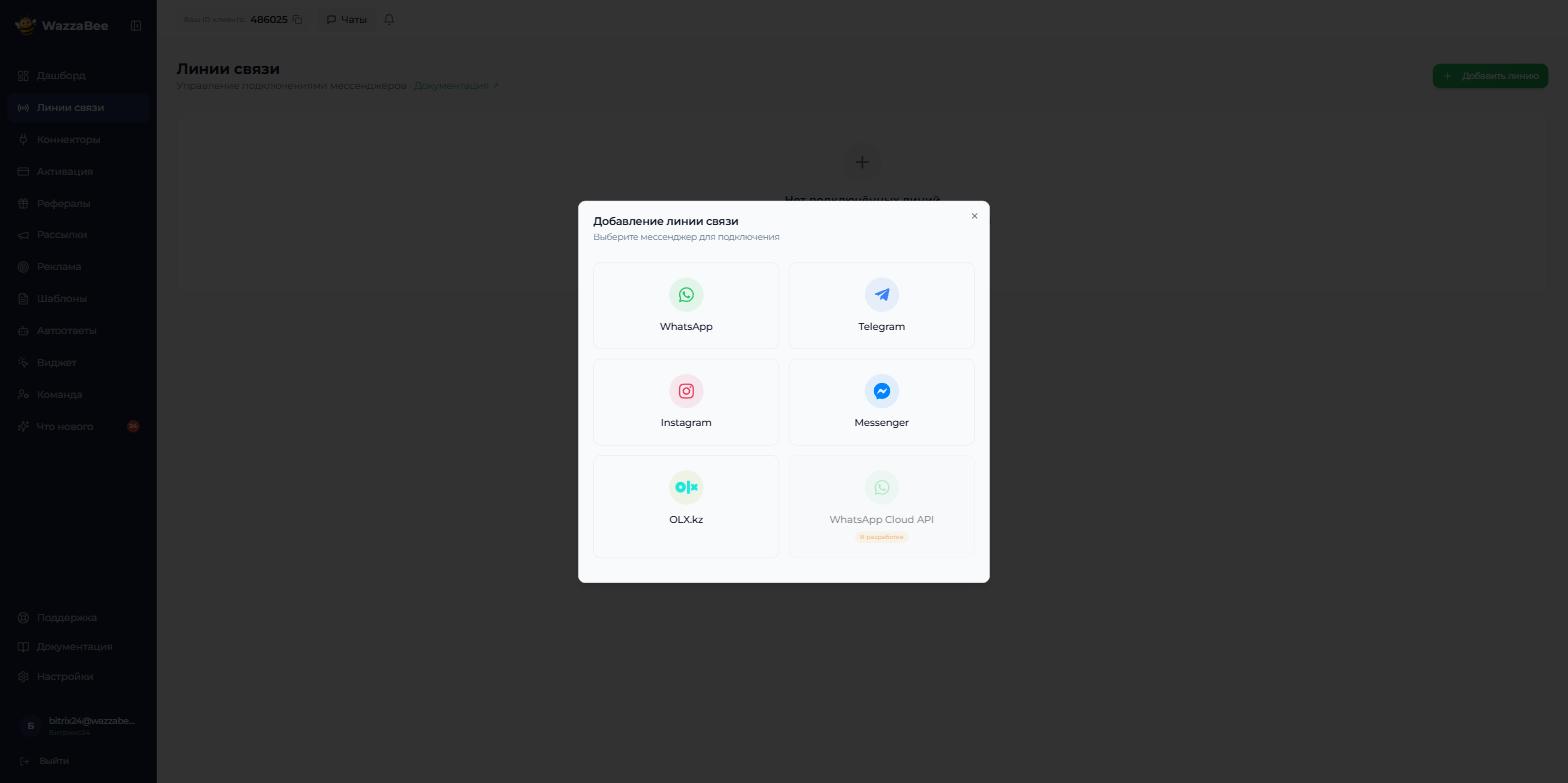
Step 1. Open the add channel screen
In your dashboard, go to the "Channels" section and click "Add channel". A messenger picker will open: choose WhatsApp.
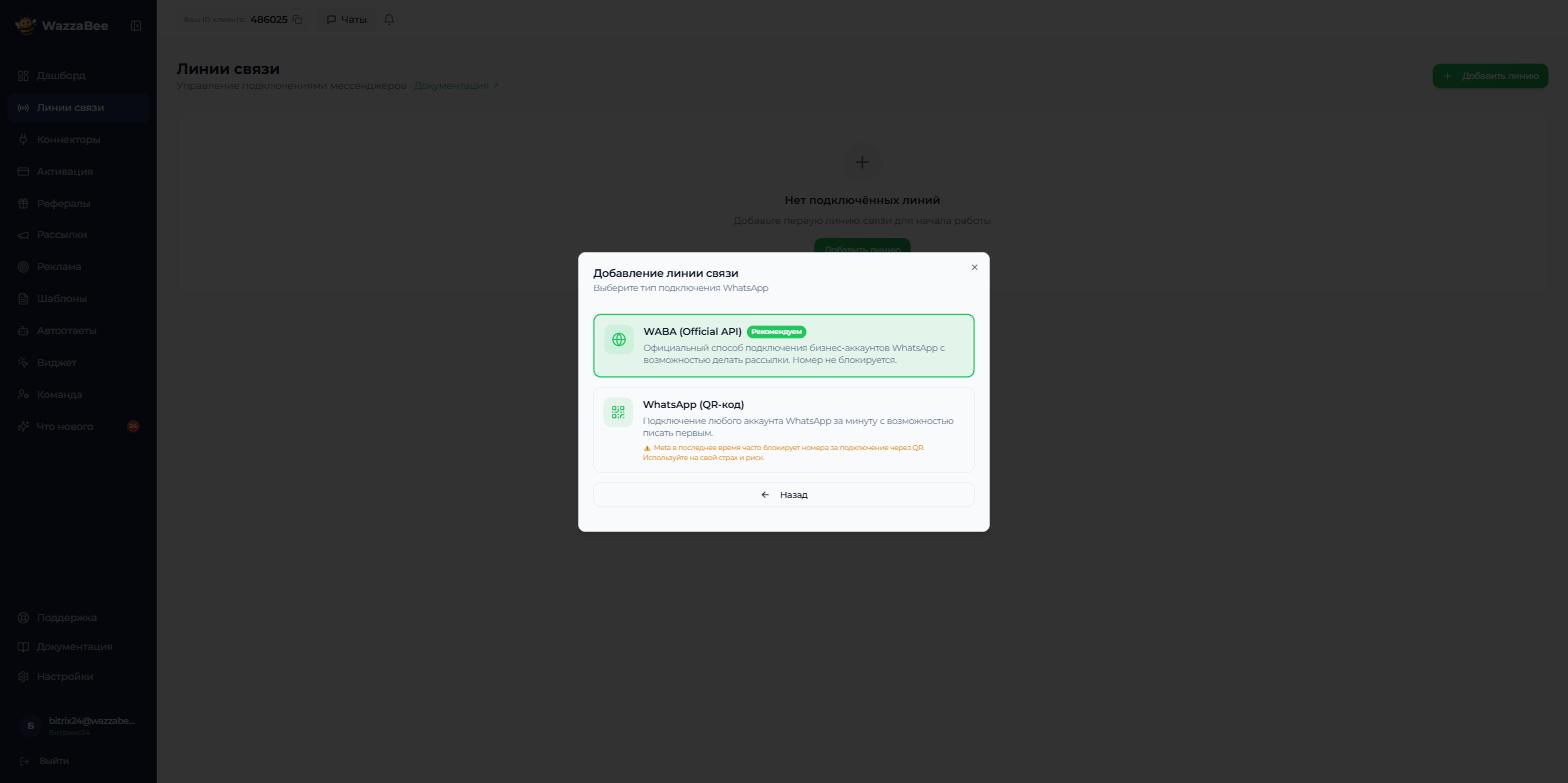
Step 2. Choose the connection type
WazzaBee will offer two options. Choose WABA (Official API): it is marked "Recommended". The second option, a QR code connection, only suits personal tasks: Meta regularly bans such numbers.
Step 3. Name the channel and start the authorization
The WABA screen will open with a list of what you will need. Enter the channel name: this is an internal name for the channel, customers do not see it. Anything clear to your agents works: "Business support", "Sales team", "Store on Abay".
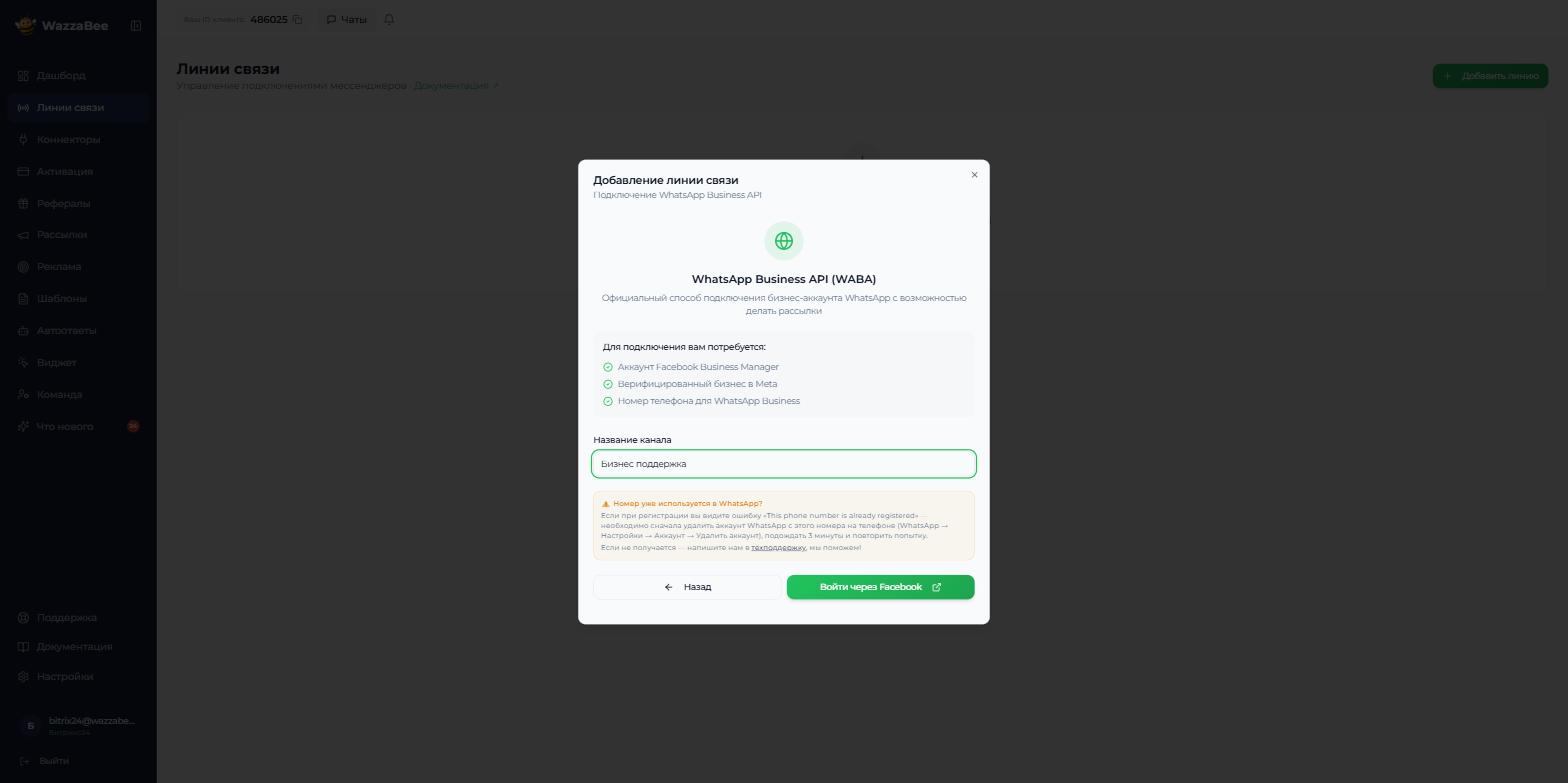
Click "Log in with Facebook". WazzaBee will create an app for your channel: the screen will show "Creating app" and a loading spinner. This takes a few seconds.
Step 4. Complete the registration in the Meta window
A new browser tab will open with a Meta form. This is the standard WhatsApp Business signup window: WazzaBee never sees your login and password. Inside the window you need to do the following:
- Log in to your Facebook account if you are not signed in yet.
- Choose a business account (portfolio) or create a new one: Meta will ask for the company name, country and website.
- Create a WhatsApp Business account and fill in the profile: display name, category, description. Customers will see the display name, so use the company name, not "Sales Astana".
- Enter the phone number and choose the verification method: SMS or a call.
- Enter the code that arrives on that number.
- Wait for the final screen and close the Meta window.
⚠️ Do not close the WazzaBee tab while the registration is running. If the Meta window closed by accident, click "Open the signup window again" in WazzaBee: the process will continue from the same point.
Go back to the WazzaBee tab and click "Done".
Step 5. Pick the number and finish the connection
After a successful authorization you will see a green check mark and the message "Authorization successful!", and below it a list of numbers linked to your WhatsApp Business account. Click the number you need.
The system will save the channel and show the message "WABA channel connected!". Click "Done": the channel will appear in the "Channels" list, and you can start writing to customers right away.
🔄 Moving your number from another provider
If your number already runs on the WhatsApp Business API with another provider, you can move it to WazzaBee. Your customers keep writing to the same number.
What is kept
- ✅ your WhatsApp display name, quality rating and messaging limits;
- ✅ the blue badge, if you had one;
- ✅ approved message templates: they are transferred automatically, and for the first 24 hours their quality rating shows as unknown.
ℹ️ Chat history before the transfer stays with your previous provider, only the number moves to WazzaBee.
What to prepare
- Turn off two-step verification (PIN) for this number in your current service. If there is no setting for it, their support can turn it off.
- Make sure your WhatsApp display name is approved and has no pending change request.
- Keep the phone with this number at hand: a code will arrive by SMS or call.
How to move the number
- Open Channels → Add channel → WhatsApp → WABA (Official API), as in steps 1 and 2. If WazzaBee asks you to choose a connection method, choose Connect a new number.
- On the channel name screen, tick This number already runs on the WhatsApp API with another provider.
- Go through the checklist and tick Everything is checked, the number is ready to transfer. Until then the login button stays inactive.
- Click Log in with Facebook, enter the number you are moving in the Meta window and confirm it with the code. If Meta warns that the number is already registered, that is expected for a transfer, just continue.
- Return to WazzaBee and click Done, then continue as in step 5.
If the transfer does not go through, contact support from your dashboard and we will check the channel.
🎁 Welcome bonus on the WABA balance
When you sign up for WazzaBee, you get a welcome bonus of $1.12. When you connect your first WABA channel, whatever is left of the bonus is credited automatically to the WhatsApp Business balance of that channel: you do not need to click anything.
- ✅ You can send your first messages right away and see the channel in action;
- 📋 The credit is visible in the channel event history and in the list of bonus transactions;
- ℹ️ The bonus is credited once, when you connect your first WABA channel. If part of it has already been spent, the remainder is credited.
⚙️ What you get after connecting
The WABA channel settings unlock features that regular WhatsApp does not have:
| Feature | Description |
|---|---|
| Company profile | Logo, description, category, email, address, website: the customer sees all of it in the chat card |
| HSM templates | Creating, deleting and recreating rejected templates, with Meta's rejection reason shown. You can manage them from three places: broadcast templates, chat templates and channel settings |
| Channel tier | Your current conversation limit: 250 unique recipients per 24 hours at the start, then 2,000 and above: how to raise the tier |
| Number quality | 🟢 High / 🟡 Medium / 🔴 Low. It drops when customers complain about your messages or block the number |
| Broadcasts | Bulk sending to your contact base through approved templates |
💡 The conversation limit is counted for the whole Meta business account, not for a single channel. If you have several numbers in one portfolio, they share a common daily limit.
🛠 What can go wrong
| Problem | Solution |
|---|---|
| "This phone number is already registered" | The number is taken by regular WhatsApp. Delete the account from the phone: WhatsApp → Settings → Account → Delete account, wait 3 minutes and try again. If you cannot delete it, connect through Coexistence. If the number runs on the WhatsApp API with another provider, see the transfer section above |
| The Meta tab did not open | The browser blocked the pop-up. Allow pop-ups for the site and click "Open the signup window again" |
| The number list is empty | The registration in the Meta window is not finished. Go back to it and make sure the number is confirmed with a code |
| The verification code does not arrive | Choose verification by call instead of SMS. Virtual numbers and numbers recently used in WhatsApp often do not receive the code |
| The display name was rejected | Meta checks that the name matches the business. Use the company name without promotional words and extra characters |
| "Connection error" | Try again. If that does not help, message support from your dashboard and we will check the channel logs |
➡️ What's next
- Message limits, tier and number quality: how to go beyond 250 recipients per day;
- Message templates and HSM: what you need in order to write to customers first;
- WABA message pricing: what the charges consist of and what the credit limit is;
- Connecting Bitrix24: so that conversations land right in your CRM.