
Connecting the number in your WazzaBee account takes 15 minutes. To keep Meta from restricting the number during connection and your first broadcasts, prepare your business account once using this checklist. The data in the images is illustrative: details are replaced with dotted placeholders, so substitute your own.
In short: what must be ready
- A business portfolio in Meta and admin rights
- Company details in the portfolio match your documents
- A website on your own domain with the legal entity, BIN and address
- Meta can see the website: response code 200
- Your business is not on the WhatsApp prohibited list
- Two admins with two-factor authentication enabled
- The domain is registered to your company
Steps 8–10 are optional or done at Meta's request. Once you are ready, go to connecting in your account.
Part 1. Preparation in Meta
Step 1. Create a business portfolio
A business portfolio (formerly Business Manager) holds your WhatsApp account, pages and employee access. Open business.facebook.com. If you already have a portfolio, log in as an admin.
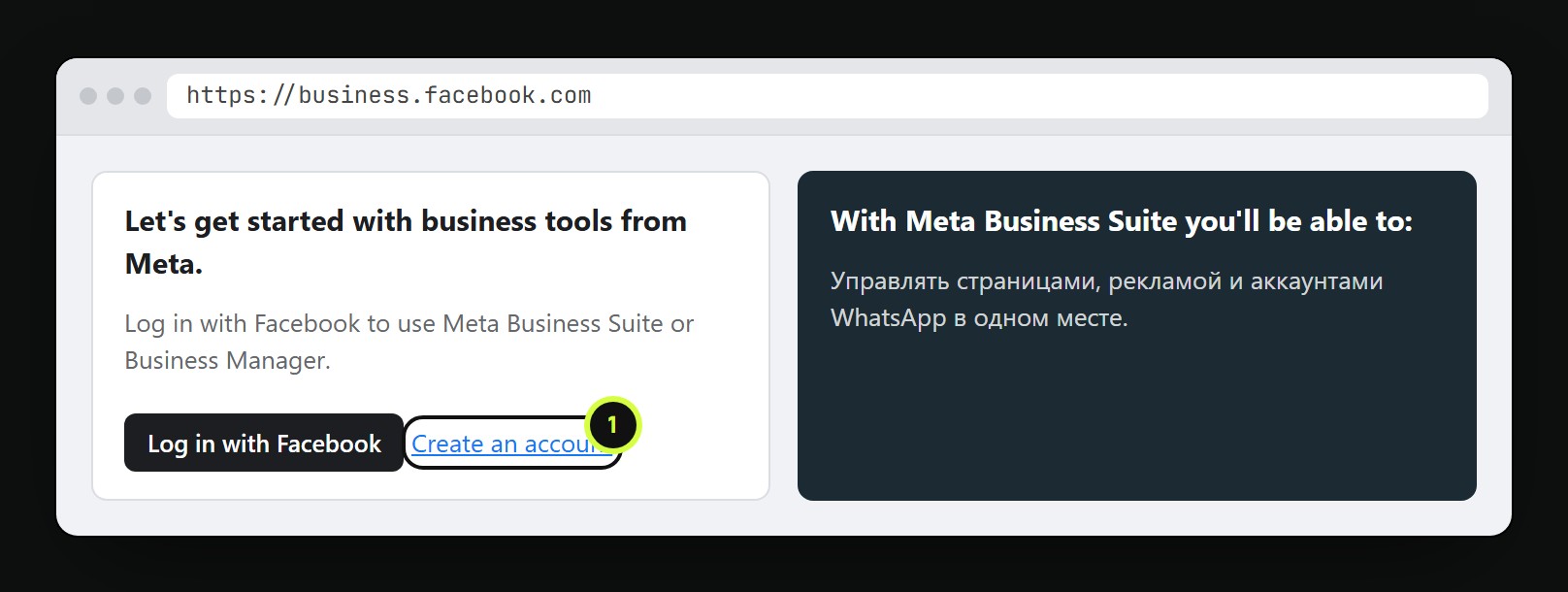
1. No portfolio yet: click Create an account and enter the company name exactly as it appears in your documents.
Step 2. Fill in company details and your contacts
Open portfolio settings, Business info section. The name, address, phone and website must match your registration documents and your website word for word.
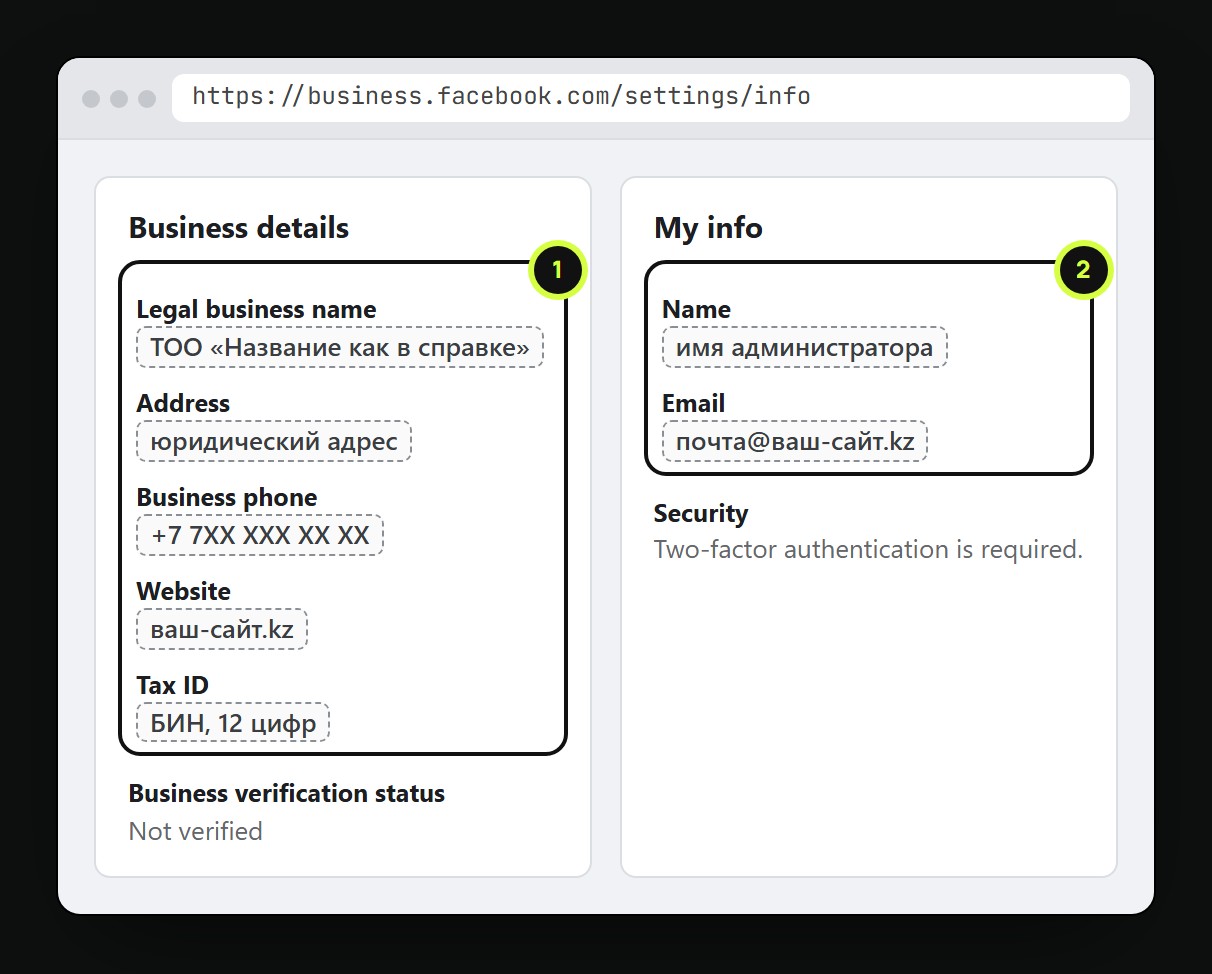
1. Take the legal name, address and BIN (IIN for sole proprietors) from your registration certificate. Abbreviations and Latin letters instead of Cyrillic count as a mismatch.
2. The My info block holds your name and admin email. An email on your website's domain is more reliable than a personal Gmail: it makes business verification easier.
Step 3. A website on your own domain with company details
Meta checks your company against your website. You need your own second-level domain. An address on a website builder's or hosting provider's domain will not work.
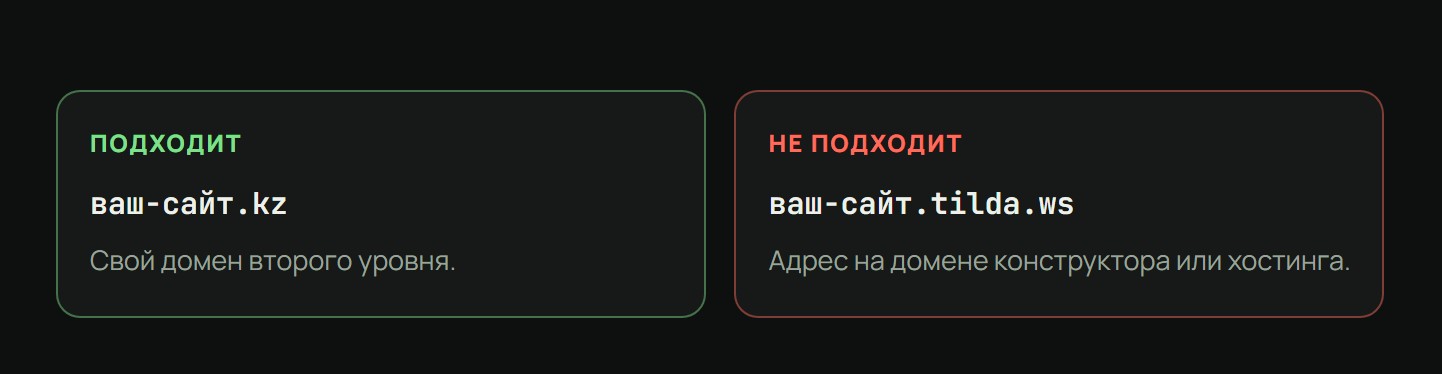
The website footer, "Contacts" or "About" page must show the legal entity, BIN and address. The same details go into your WhatsApp profile.
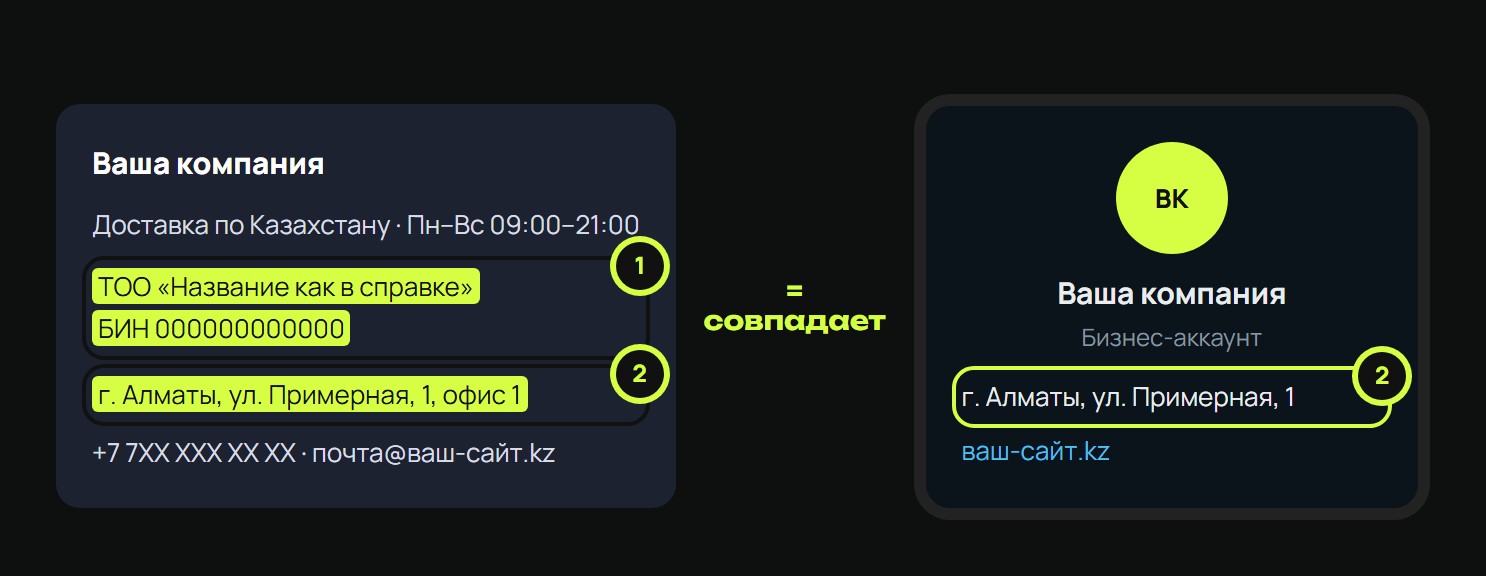
1. The legal entity and BIN on the website are written the same way as in the portfolio from step 2.
2. The address on the website, in the portfolio and in the WhatsApp profile is identical.
Step 4. Check that Meta can see your website
Open the Meta Sharing Debugger, paste your website address, click Debug, then Scrape Again. Look at the Response Code line.
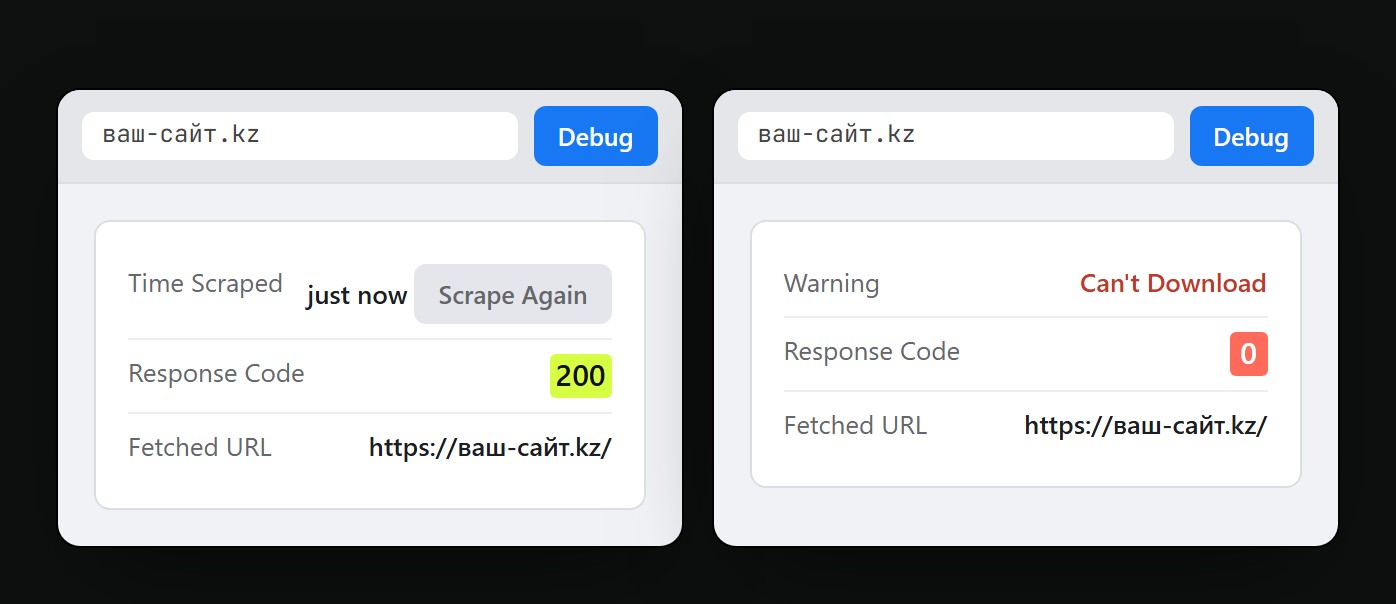
- 200: all good, Meta can open the website.
- 0, 4xx, 5xx: Meta cannot open the website. Check the domain, the SSL certificate and whether the site blocks bots.
Step 5. Check your business against WhatsApp policies
A number of goods and services cannot be sold or promoted through WhatsApp Business. If your business is on this list, the number will be banned even after a successful connection:
- weapons;
- alcohol and tobacco;
- drugs and prescription medicines;
- medical products;
- rare animals and plants, live animals other than livestock;
- hazardous substances;
- currency and cryptocurrency;
- real-money gambling;
- adult goods and services, dating sites;
- multi-level marketing;
- payday loans and debt collection;
- organs and biological materials;
- deceptive practices and pressuring customers.
Full and current list: WhatsApp Business Messaging Policy.
Step 6. Two admins and two-factor authentication
The portfolio needs at least two admins: real personal Facebook profiles of company employees, not outside contractors.
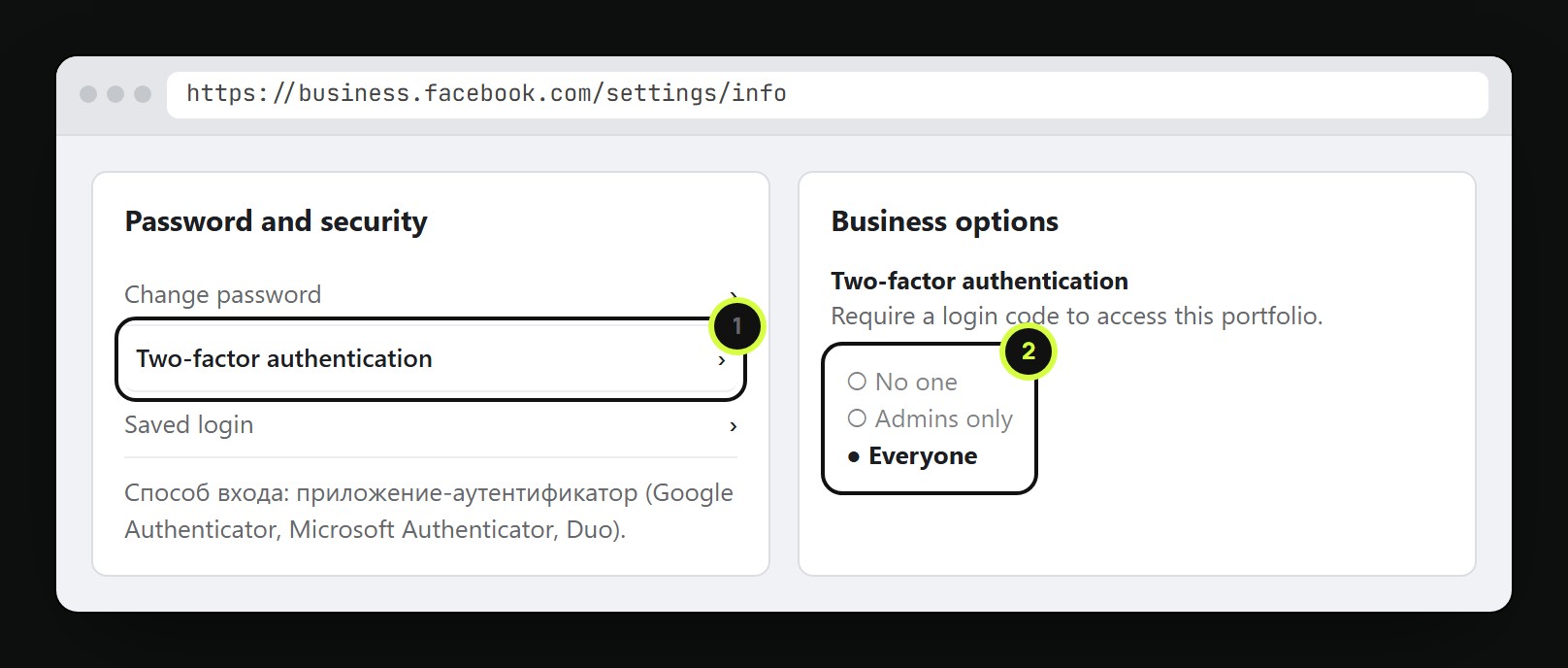
1. Each admin enables protection in their own account: Accounts Center → Password and security → Two-factor authentication. The most convenient way is an authenticator app: Google Authenticator, Microsoft Authenticator or Duo.
2. In portfolio settings, Business options block, set Two-factor authentication to Everyone.
Step 7. The domain is registered to your company
Check the domain record with any WHOIS service. The owner must be the same company, and the domain admin contacts must be your email and phone, not those of a web agency.
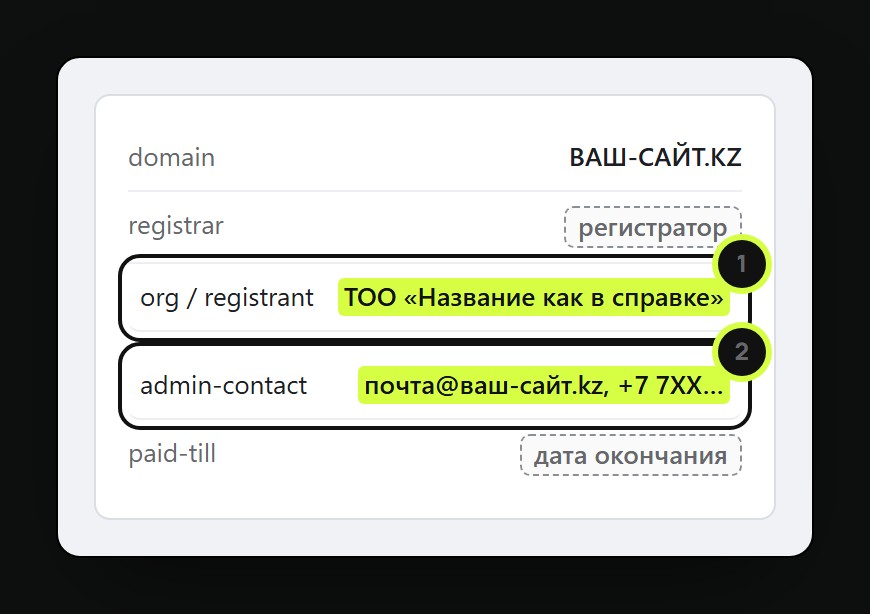
1. The organization matches the legal entity from step 2.
2. The admin contacts lead to you. If a contractor bought the domain, ask them to transfer it to you.
Step 8. Admin identity confirmation (if Meta asks)
Sometimes Meta asks an admin to confirm their identity with a document. This is done in the personal Facebook account: facebook.com/id/hub.
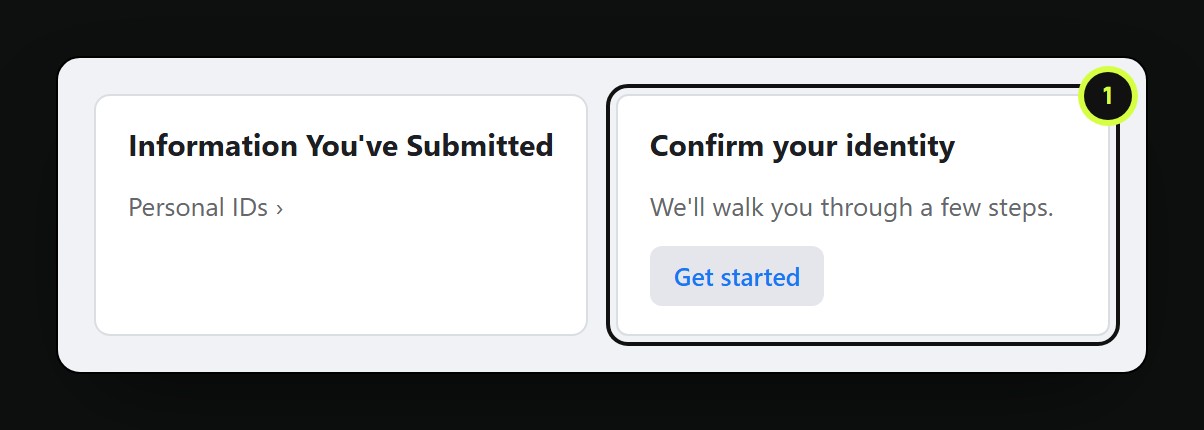
1. Click Get started and upload your ID.
Step 9. Domain verification (optional)
You need it if the company has no business phone for business verification or the email is not on the website's domain. Open Brand Safety → Domains, click Add and enter the domain without www and https.
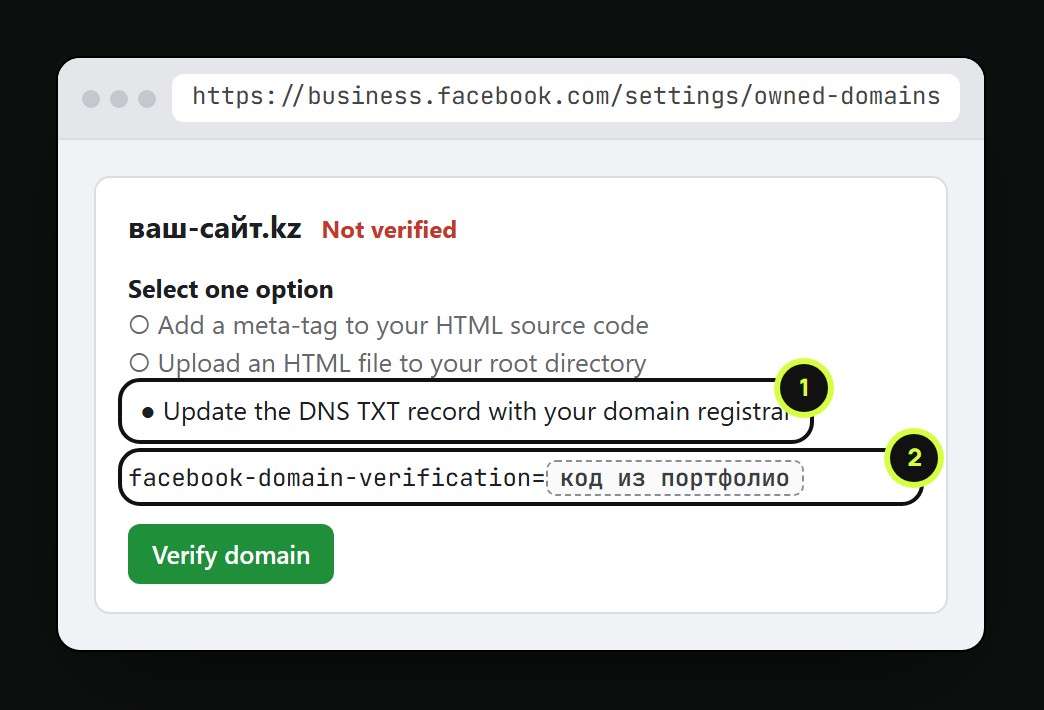
1. Choose Update the DNS TXT record with your domain registrar.
2. Copy the facebook-domain-verification=… string into the domain's TXT record at your registrar and click Verify domain. If the status does not change, click again later.
Step 10. Business verification (optional)
You can connect without it. Verification increases Meta's trust in the number, unlocks higher broadcast limits and is required to apply for the blue checkmark. Start in the Security Center.
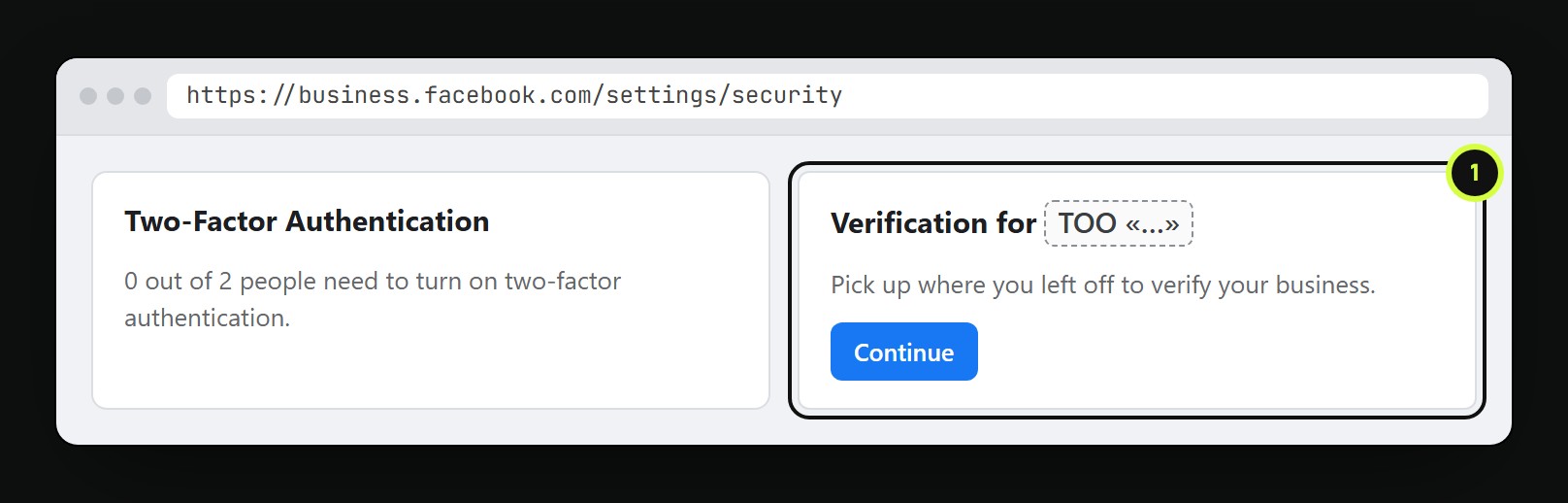
1. Click Start verification, or Continue if you started earlier.
Documents Meta accepts:
| Document | Purpose |
|---|---|
| Certificate of state registration (egov.kz) | LLP name and address |
| Notification of commencement of sole proprietor activity | sole proprietor name and address |
| Bank statement with the company name | name and address |
| Utility or telecom bill | address and phone only, not the name |
Documents must be valid, and the company name in them must match step 2. Meta does not accept self-made documents.
Part 2. Connecting in WazzaBee
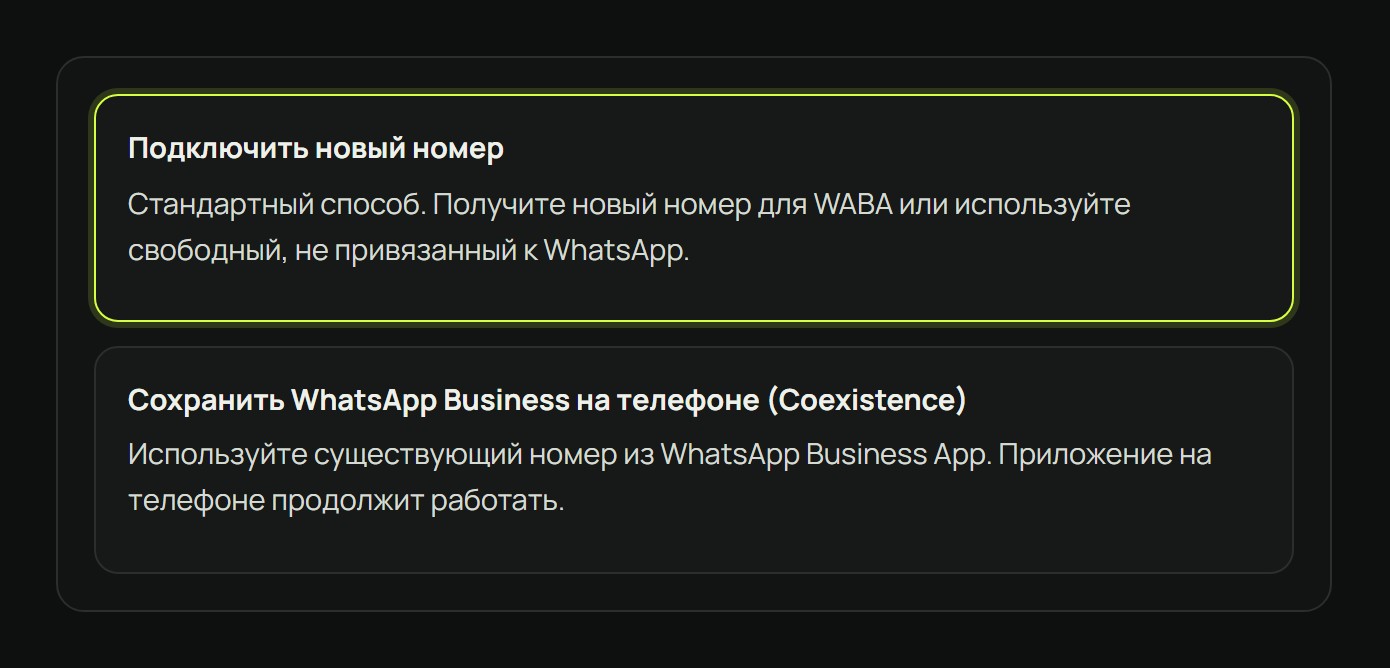
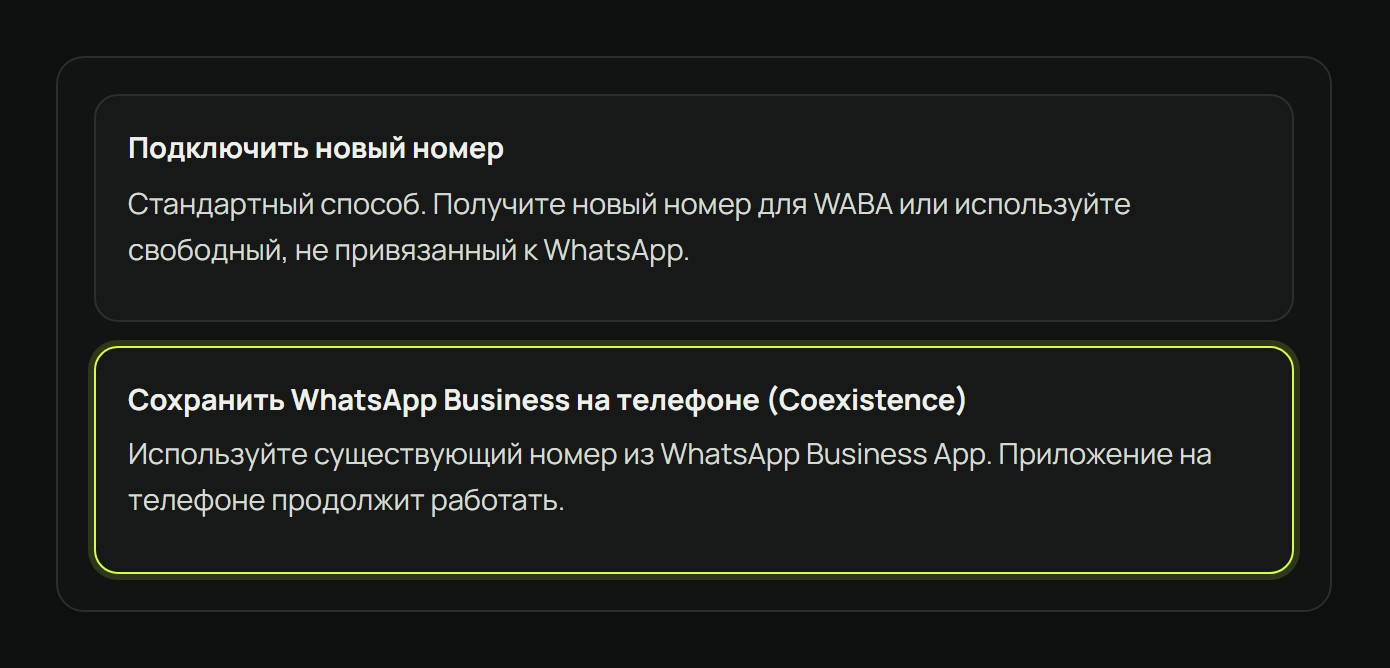
Choose a mode: new number if the number is not linked to WhatsApp, or Coexistence if the number already works in the WhatsApp Business app and needs to stay there.
Connecting a new number
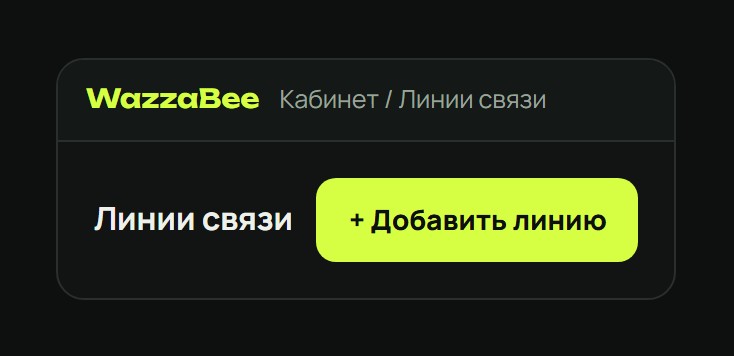
- Open Lines, click Add line and select WhatsApp Business API.
- Select Connect a new number.
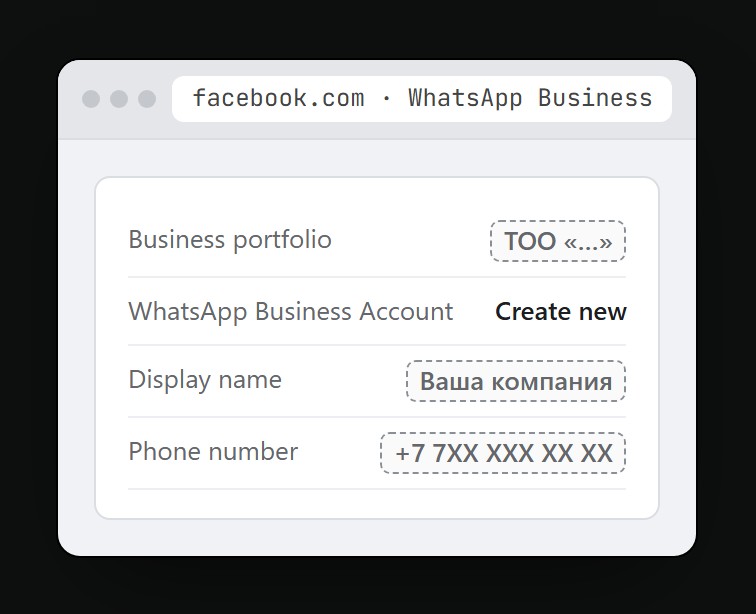
- Click Log in with Facebook. In the Meta window, log in as a portfolio admin, select the portfolio, create a WhatsApp Business account, enter the display name and number, and type in the SMS code. The display name must be related to the company or brand name on the website.
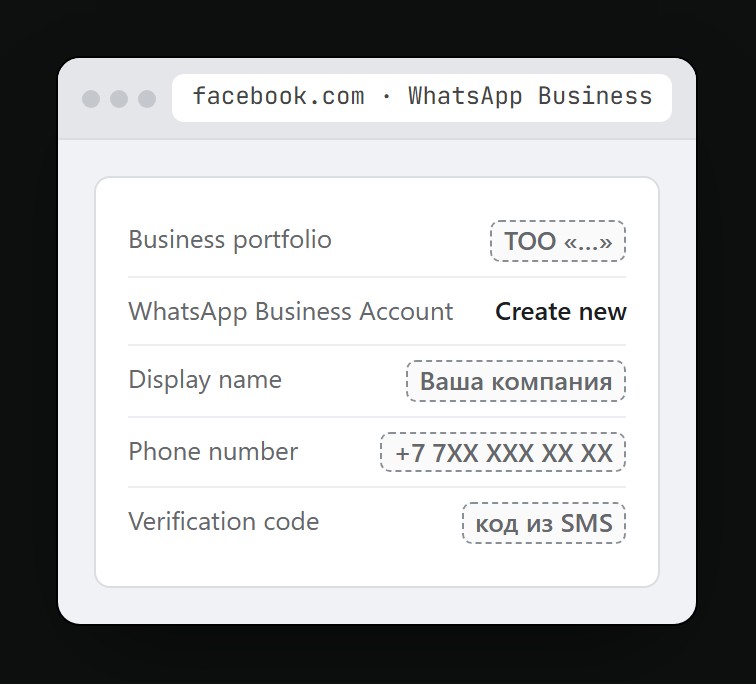
- Return to your account and click Done. The line will appear in the list.
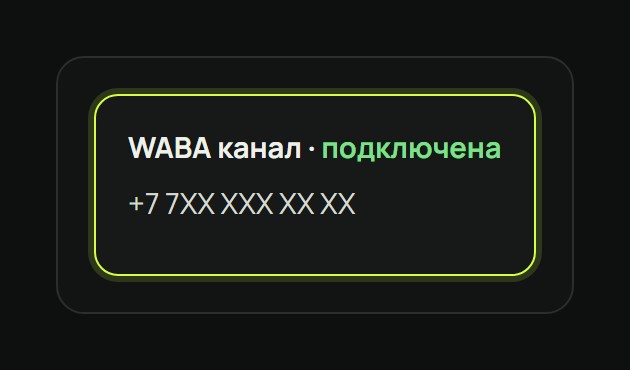
Number already used in WhatsApp? If Meta says "This phone number is already registered", delete the WhatsApp account for this number on the phone (WhatsApp → Settings → Account → Delete account), wait 3 minutes and try again. If you need to keep the app on the phone, connect via Coexistence.
Connecting with Coexistence
- Open Lines → Add line → WhatsApp Business API and select Keep WhatsApp Business on the phone (Coexistence).
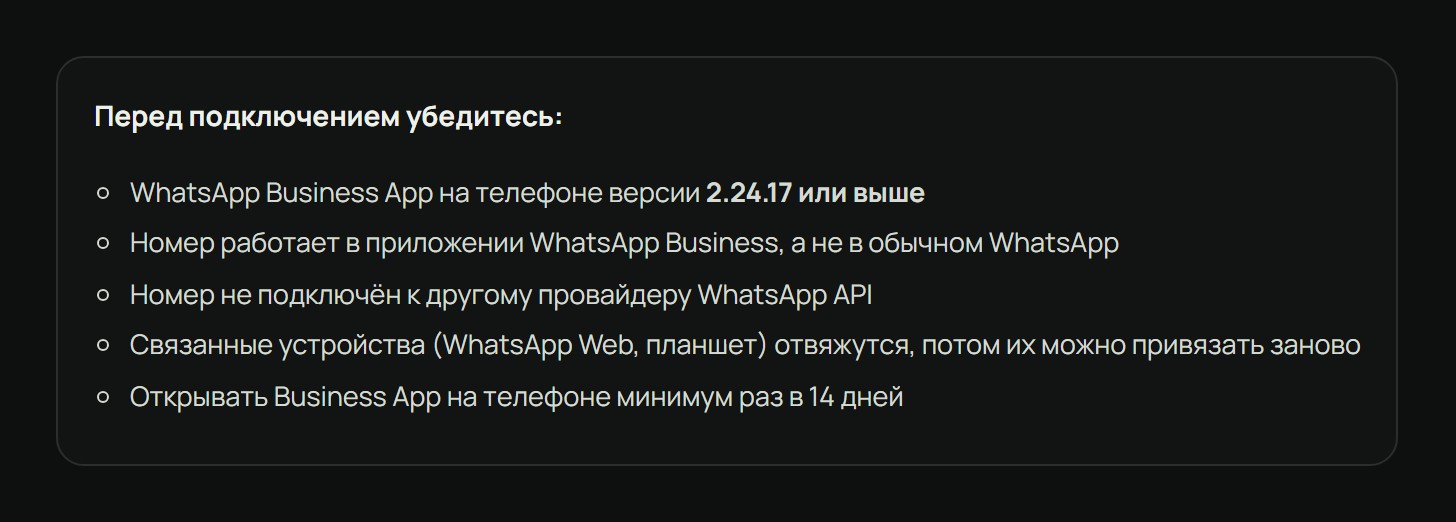
- Review the conditions and confirm them with the checkbox: WhatsApp Business app version 2.24.17 or higher, the number is not connected to another WhatsApp API provider, linked devices will be unlinked, and the app must be opened at least once every 14 days.
- Click Log in with Facebook. In the Meta window, choose to connect an existing WhatsApp Business app and enter its number.
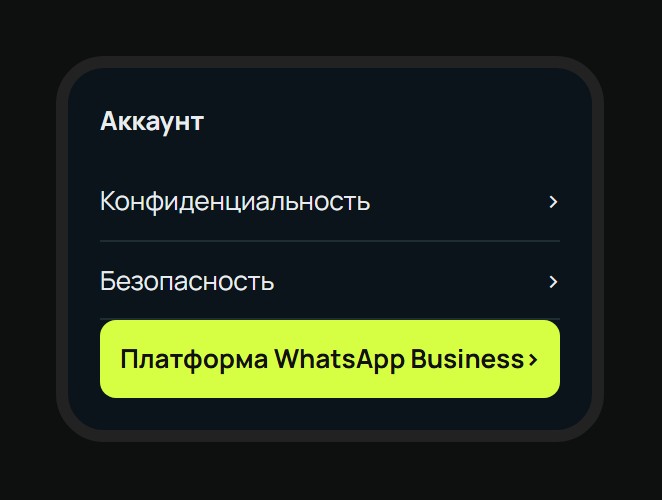
- On the phone, in WhatsApp Business, open Settings → Account → WhatsApp Business Platform and scan the QR code. Confirm the history transfer there too, if you chose it.
- Return to your account and click Done.
Chat history. Personal chats from the last 6 months are transferred, text only. Meta provides the history only within the first 24 hours after connection.
Facebook showed an error? Do not restart the connection right away: the number may end up half-linked. In your account, click Continue connection or contact support.
More about the modes: Connecting WABA and Coexistence.