
The WazzaBee robot writes to your customer on WhatsApp by itself, the moment a deal reaches the right stage.
No developers needed. You set it up with a few clicks in Bitrix24, in about 5 minutes.
This guide is written in the simplest possible words. If you have never set up robots in Bitrix24 before, don't worry, just follow the steps and the screenshots.
What a "robot" is and why you need one
A robot is a small helper inside Bitrix24. It does nothing on its own and simply waits for a command. The command is simple: "when a deal reaches this stage, send the customer a message".
For example:
- The deal moves to the "Result ready" stage → the robot sends the customer a WhatsApp message: "Your test result is ready, the link is inside."
- The deal moves to the "Awaiting payment" stage → the robot sends the invoice.
- The deal moves to the "Booking confirmed" stage → the robot sends a reminder.
You no longer need to open the chat and type every time. Bitrix24 does it for you through WazzaBee.
What to prepare before you start
For the robot to work, set up three things in your WazzaBee account in advance:
- Connect a channel. To send WhatsApp templates you need a WhatsApp Business (WABA) channel. For plain text, Telegram, Instagram or regular WhatsApp will do.
- Enable the channel for Bitrix24. Open WazzaBee → Connectors → Bitrix24 and switch on the channel you need.
- Create a template and get it approved. A WhatsApp template must pass Meta's review and reach the APPROVED status. Only approved templates appear in the robot's list.
If any of this is missing, do it first, otherwise the robot will have nothing to send.
Step 1. Open the robots on the stage you need
Go to Bitrix24 → CRM → Deals → click the "Robots" icon at the top (or open the "Robots" tab). You'll see your stages: the columns of your pipeline.
Find the stage where the message should go out (for example "Result ready") and click "+" or "Add" on that stage.
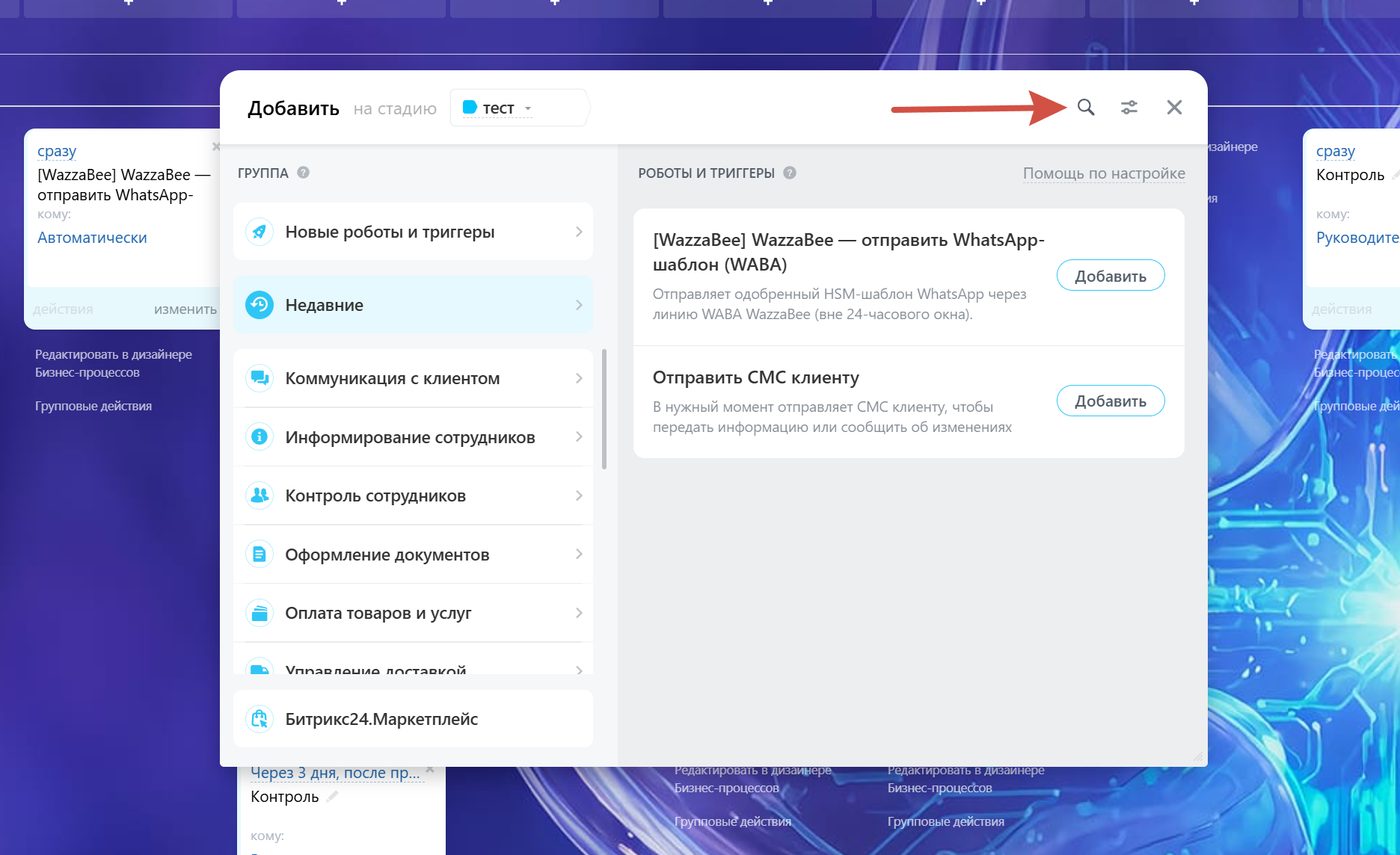
Step 2. Find the WazzaBee robot
A window with the list of robots opens. Ours is called:
[WazzaBee] WazzaBee: send WhatsApp template (WABA)
There are two ways to find it:
- Pick the "Recent" section on the left: if you have used the robot before, it will be there.
- Or click the search icon (magnifier) in the top right corner and type WazzaBee.
When you see the robot card described as "Sends an approved WhatsApp HSM template through a WazzaBee WABA channel", click "Add".
Step 3. Set up what to send and to whom
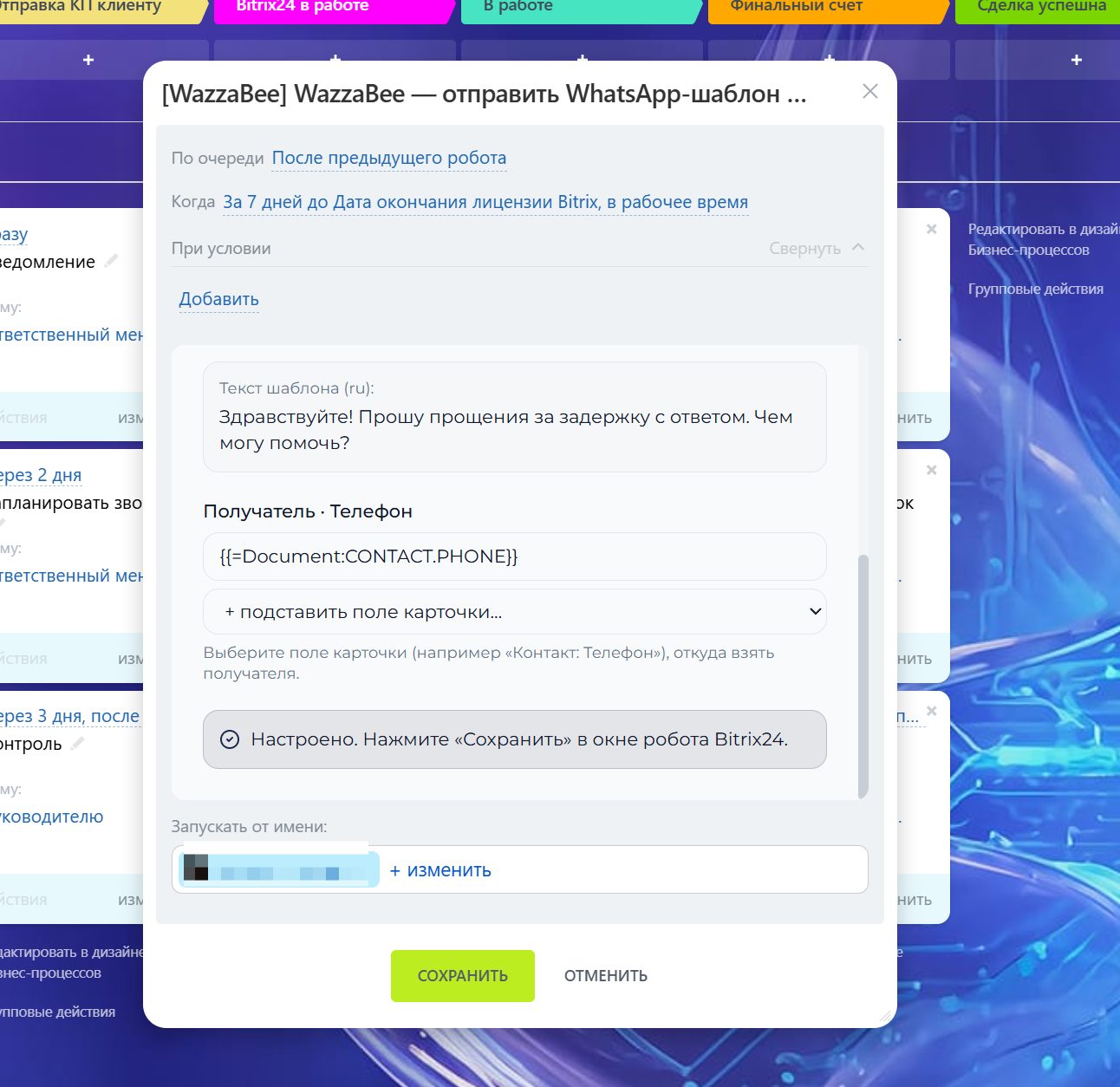
After you click "Add", the WazzaBee setup window opens. Everything here goes in order, from top to bottom:
1) Choose the channel
In the first field, choose the channel the message will go from. For example, your WhatsApp Business number.
2) Choose the template (for WhatsApp WABA)
If you picked a WhatsApp Business (WABA) channel, a list of your approved templates appears below. Choose the one you need (for example "result ready"). Right under the list you'll see the template text: so you know exactly what the customer will receive.
If the template has variables (placeholders like {{1}}, {{2}}: a name, a date, a link), fill them in. You can type a value manually or take it from a field of the deal.
3) Set the recipient
The robot needs to know which number (or username) to send to. In a deal, the phone number usually sits on the linked contact. So:
- Click "+ insert a field from the card…".
- Choose the "Contact: Phone" field.
- A special variable appears in the recipient field (for example
{{=Document:CONTACT.PHONE}}): that's normal. When the robot fires, Bitrix24 substitutes the customer's real number there.
Once everything is selected, a green line appears: "Configured. Click Save in the Bitrix24 robot window".
Step 4. Save the robot
Click the big green "Save" button in the Bitrix24 robot window. Done: the robot is now on the stage.
What happens next
From now on it all runs by itself. As soon as any deal moves to this stage, the robot fires and sends the customer a message through WazzaBee.
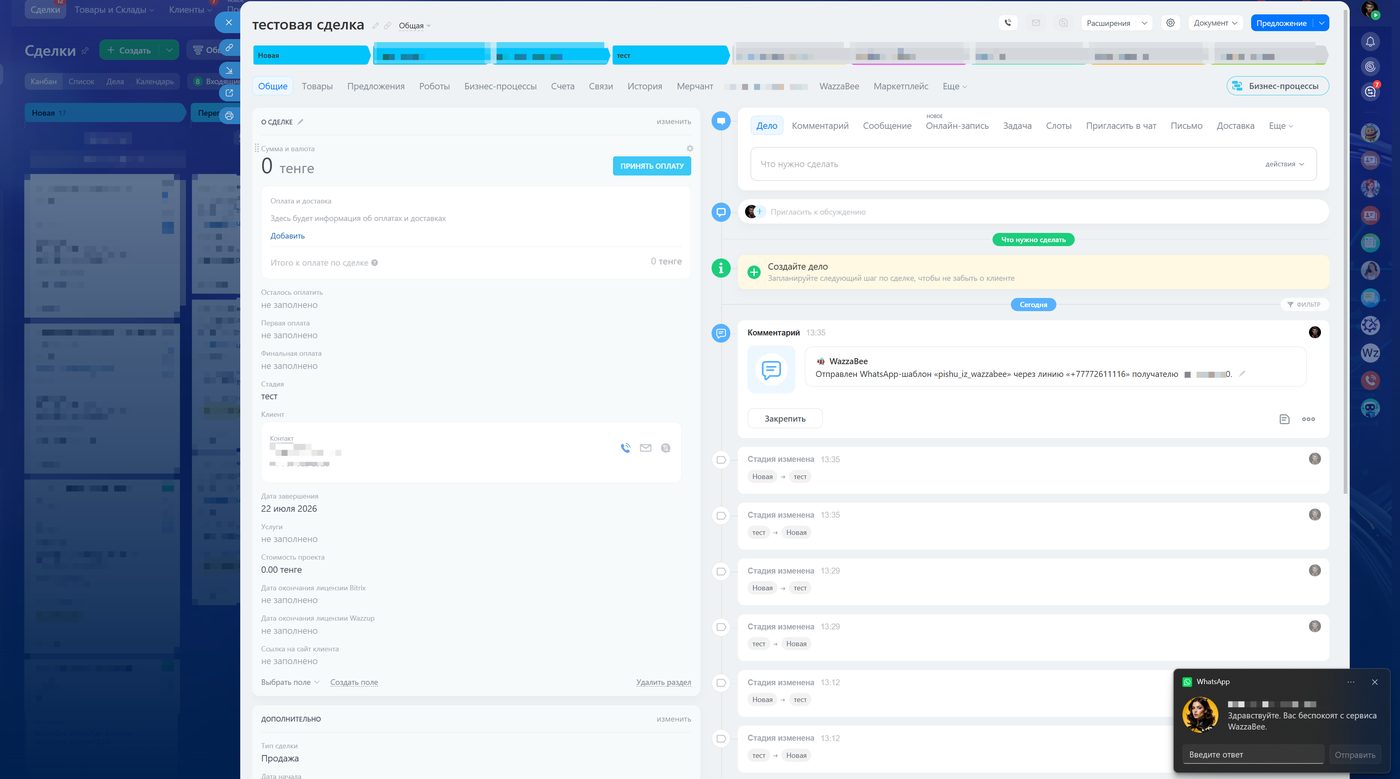
Everything is logged in the deal timeline
So you can always see that the robot really sent the message, WazzaBee writes every send straight into the deal: into the activity feed (the timeline).
A comment like this appears there:
🐝 WazzaBee: WhatsApp template "pishu_iz_wazzabee" sent through channel "+77772611116" to recipient 7707…
So any agent who opens the deal immediately sees which message went out, through which channel and to whom. Nothing gets lost, everything is transparent.
WazzaBee fields fill in by themselves
When a customer writes to you from Telegram, Instagram or Facebook, there is no phone number: only a username or an ID. So you don't have to hunt for it, WazzaBee adds these fields to the deal itself:
- WazzaBee: Telegram (username/ID)
- WazzaBee: Instagram (username)
- WazzaBee: Facebook (ID)
- WazzaBee: Customer username/ID
- WazzaBee: Channel
These fields are filled in automatically with the customer's first message. They are handy to use as the "recipient" in the robot, just like "Contact: Phone".
FAQ
| Question | Answer |
|---|---|
| The robot doesn't show up in the robot list | Open the WazzaBee app inside Bitrix24 once and refresh the page: the robot registers itself. |
| There's no template list in the settings | The template list only appears for a WhatsApp Business (WABA) channel. Other channels get a plain text field. |
| The template list is empty | That means you have no approved templates. Create a template in WazzaBee and wait for the APPROVED status from Meta. |
| It says "Log in to WazzaBee" | This Bitrix24 portal isn't linked to your WazzaBee account yet. Open WazzaBee → Connectors → Bitrix24 and connect the portal. |
| The robot didn't fire, the message never went out | Check that: the deal really moved to the stage (rather than already sitting there); the channel is active and enabled for Bitrix24; the contact has a phone number; and for WABA a template is chosen and a recipient is set. |
| The customer hasn't written in a long time: will the message arrive | Through a WhatsApp Business (WABA) channel with an approved template: yes. Through Telegram, Instagram or regular WhatsApp you can't write first, only inside an open conversation. |
Important: template quality and Meta's limits
Meta (the owner of WhatsApp) makes sure businesses don't bury people in messages. So keep two rules in mind: they directly affect whether your templates get delivered.
1. There is a frequency limit
Meta limits how many templates one customer receives in a short period. If you send someone many templates in a row and they don't reply, some of those messages simply stop reaching that number. In practice, don't send more than one or two unanswered templates in a row to the same customer. Meta doesn't publish the exact number and changes it from time to time, but the principle stays the same: the less pushy you are, the better your delivery.
2. The main goal of a template is to get a reply
As soon as the customer replies to your message, a "free window" opens for 24 hours. Inside it you can exchange regular messages as much as you like, with no extra charge for templates. So write your template in a way that makes the customer want to reply:
- ask a clear question ("Does tomorrow at 15:00 work for you?");
- add quick reply buttons ("Confirm", "Reschedule", "Cancel");
- give real value: something the customer is actually waiting for (a result, a status, an invoice).
In short
- Connect a channel and get a template approved in WazzaBee.
- In Bitrix24, add the "[WazzaBee] WazzaBee: send WhatsApp template (WABA)" robot to the stage you need.
- Choose the channel → the template → the recipient ("Contact: Phone") → Save.
- Move a deal to the stage: the robot sends the message and logs it in the deal.
That's it. Your CRM now writes to customers on its own, and you see every send right inside the deal.