
🔄 Moving a WhatsApp API number from another provider
If your number already runs on the WhatsApp Business API with another provider, you can connect it to WazzaBee in 15 minutes. Meta has changed the process: the number no longer "moves" from one provider to another, it simply gets one more connection. This means:
- You don't need to remove the two-step verification PIN.
- The number stays online while you connect it, and customers keep messaging you as usual.
- The business name, quality rating, messaging limits and blue check mark all stay with the number.
✅ What you need
- A WazzaBee dashboard: sign up at wazzabee.com.
- Admin access to the Meta business portfolio (business.facebook.com) that holds the number.
- Access to the email or phone of your Facebook account: Meta may send you a login confirmation code.
Step 1. Start the connection in your dashboard
- Open Channels and start connecting WhatsApp WABA.
- Tick "This number already runs on the WhatsApp API with another provider".
- Go through the items in the yellow box, tick "Everything is checked, the number is ready to transfer" and click "Log in with Facebook".
- In the Meta window, click Continue.
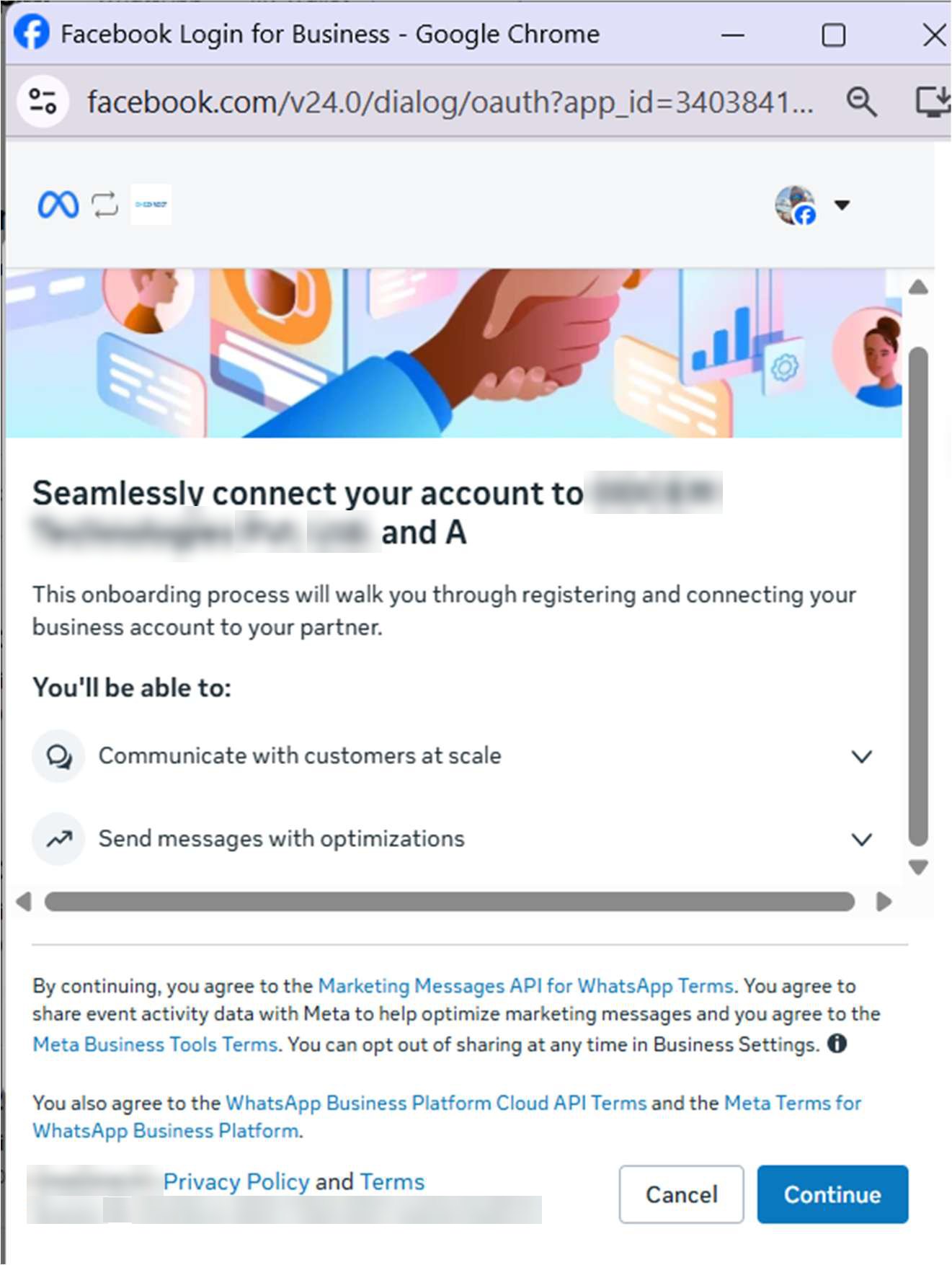
Step 2. Choose your current number
In the list of numbers, pick the one that currently works with your other provider. It is marked Registered. Click Next.
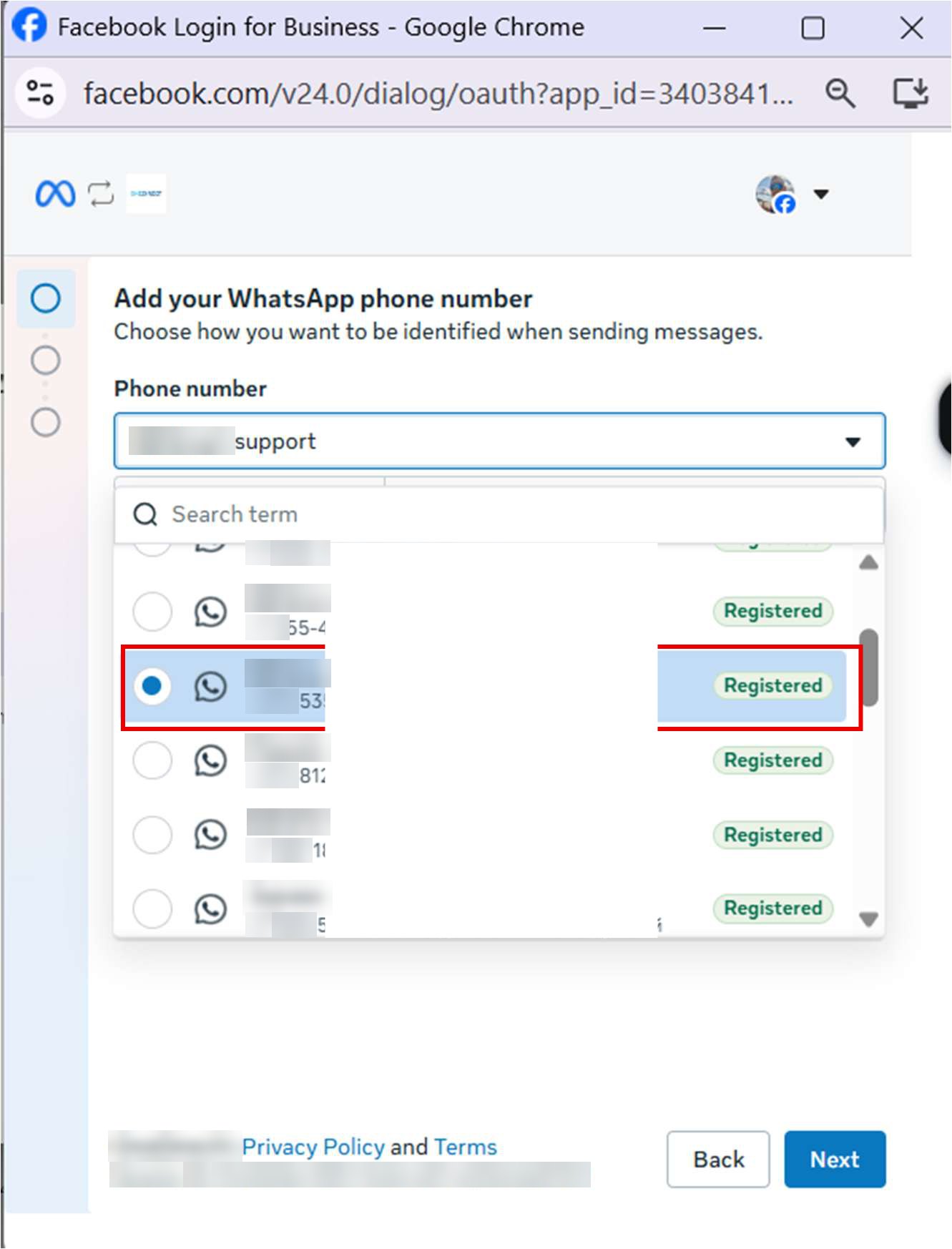
Step 3. The business portfolio and account are filled in for you
The Business portfolio and WhatsApp account fields are already filled in and locked. That is expected. Move on to the next step.
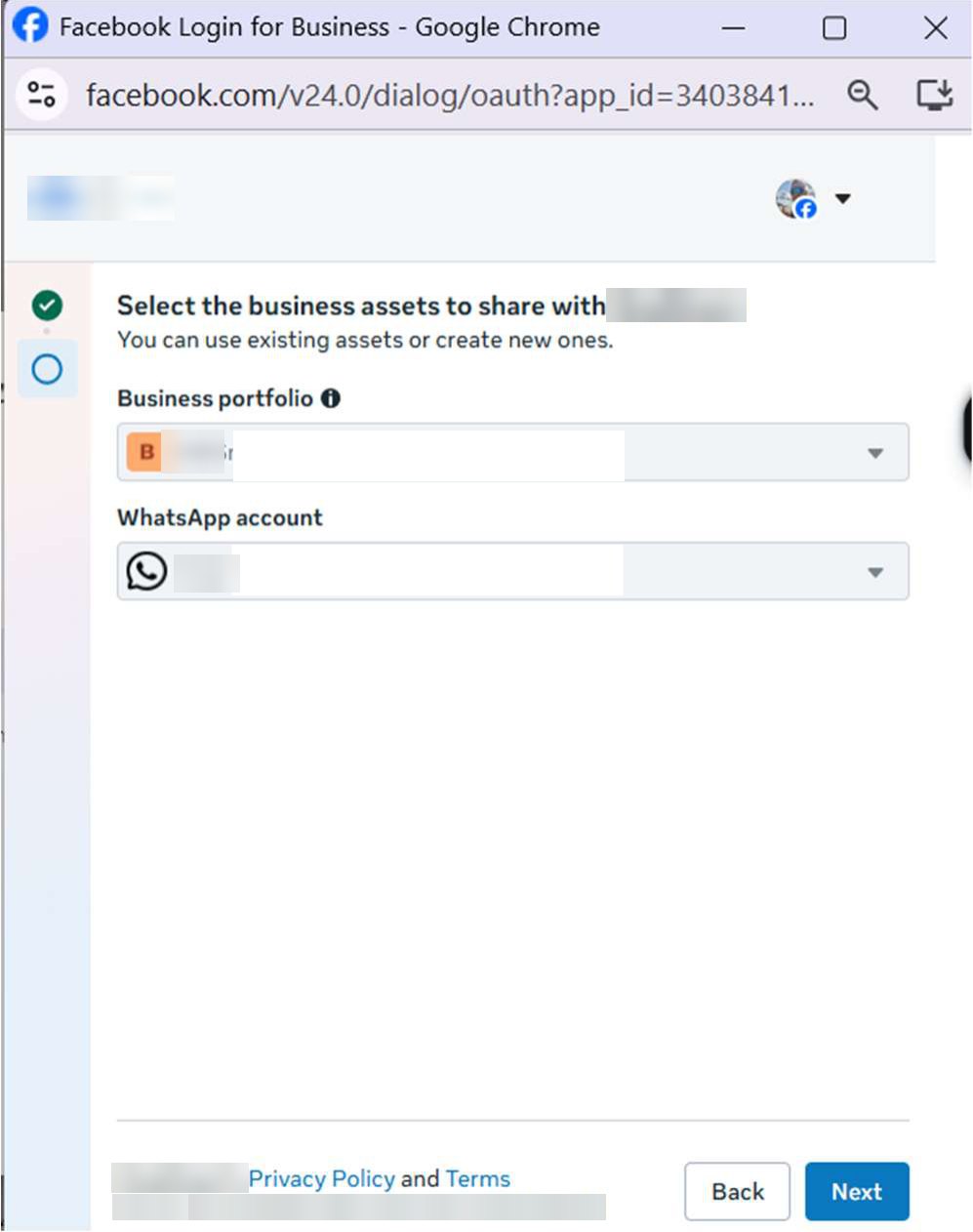
Step 4. Confirm the second connection to the number
Meta will show the warning "This number is already used for another integration": one more connection is being added to the number. This is normal. Tick "I have confirmed that all integrations on this number support conversation routing" and click Next.
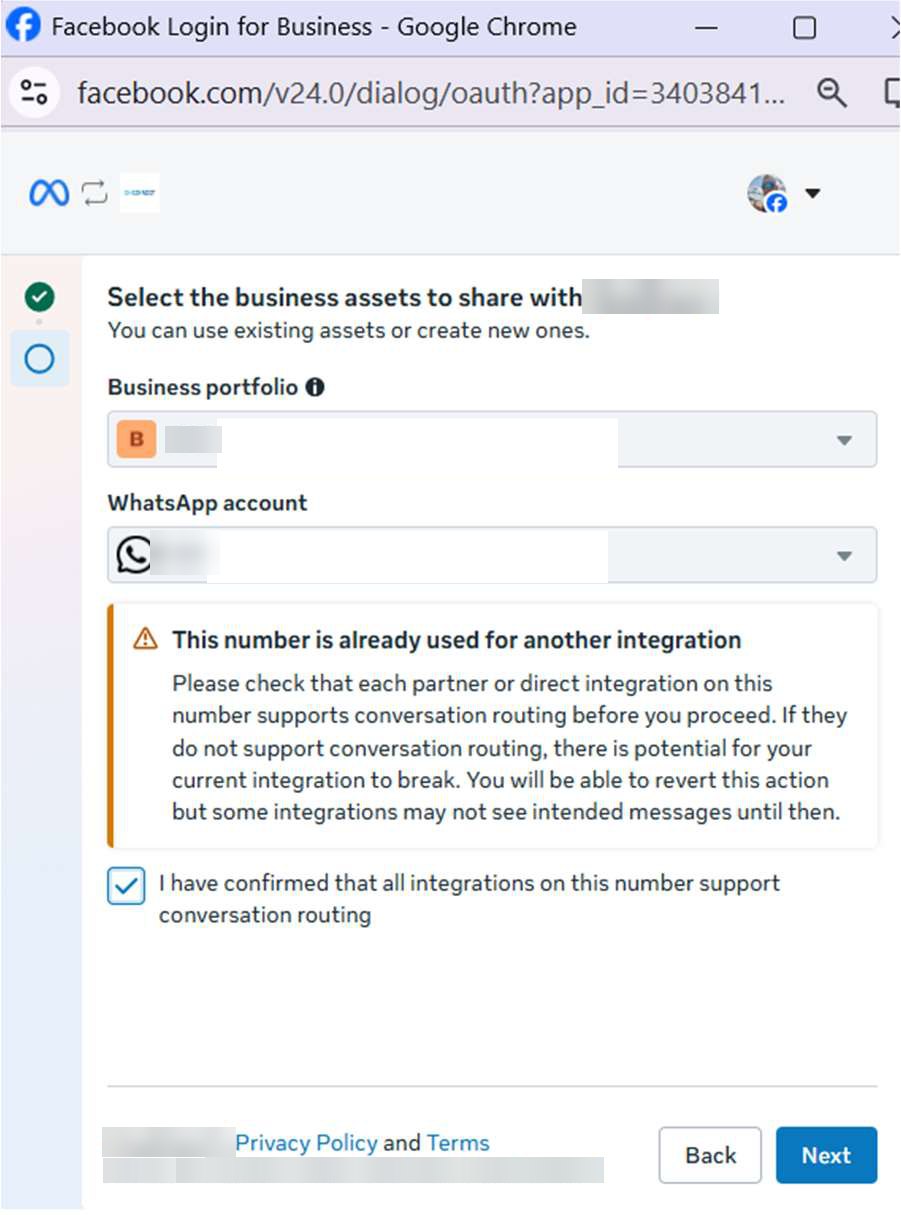
If the Next button keeps spinning and won't let you through, see "If the connection fails".
Step 5. Check the name and confirm access
The display name is filled in automatically. If the field is empty, enter the name exactly as your customers currently see it in WhatsApp and click Next. On the screen with the list of permissions, click Confirm.
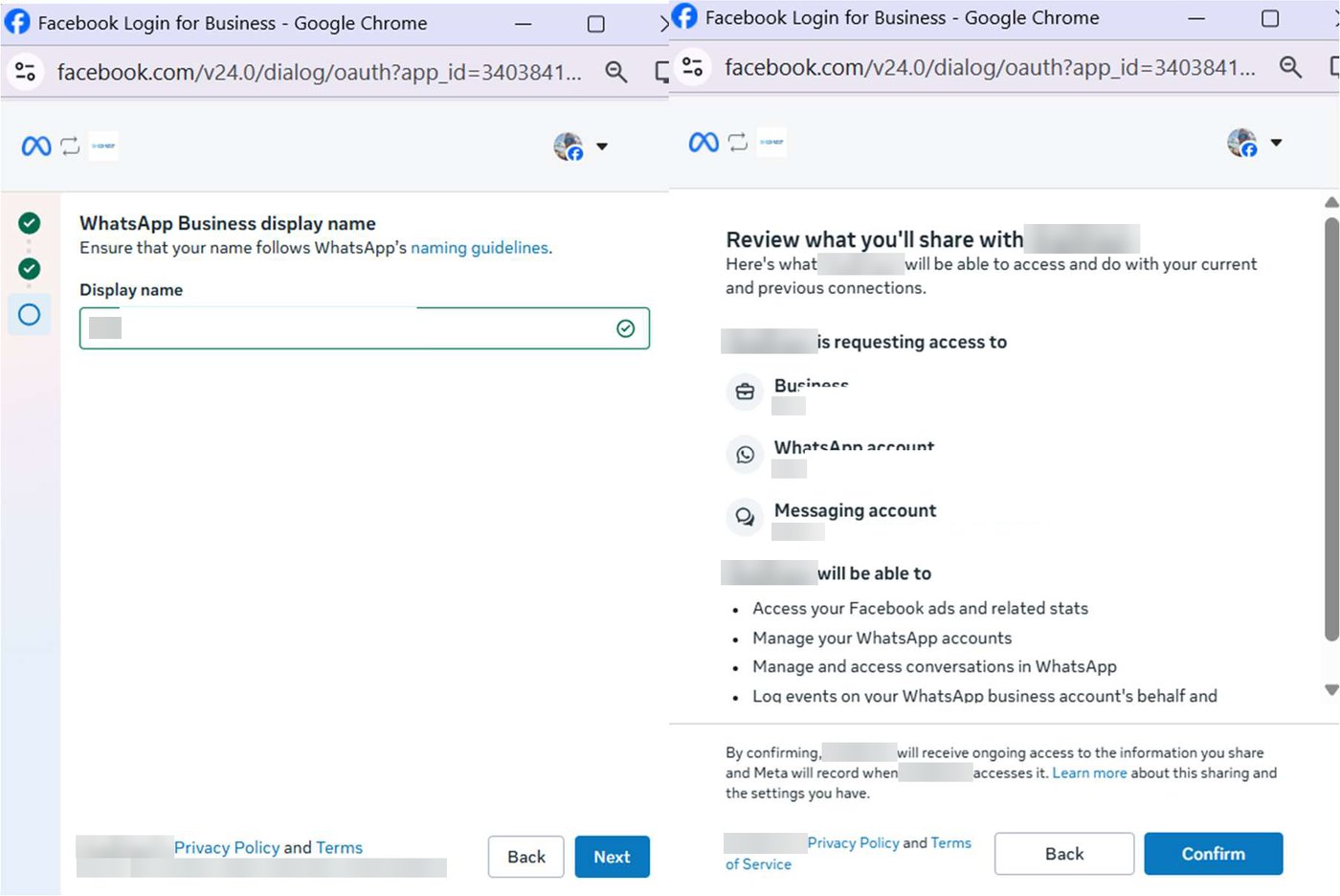
Step 6. Enter the code and finish
Facebook may ask for a login confirmation code, which is sent to the email or phone of your account. After that you will see the "Your account is connected" screen. Click Finish and go back to your dashboard: the channel will become active in Channels.
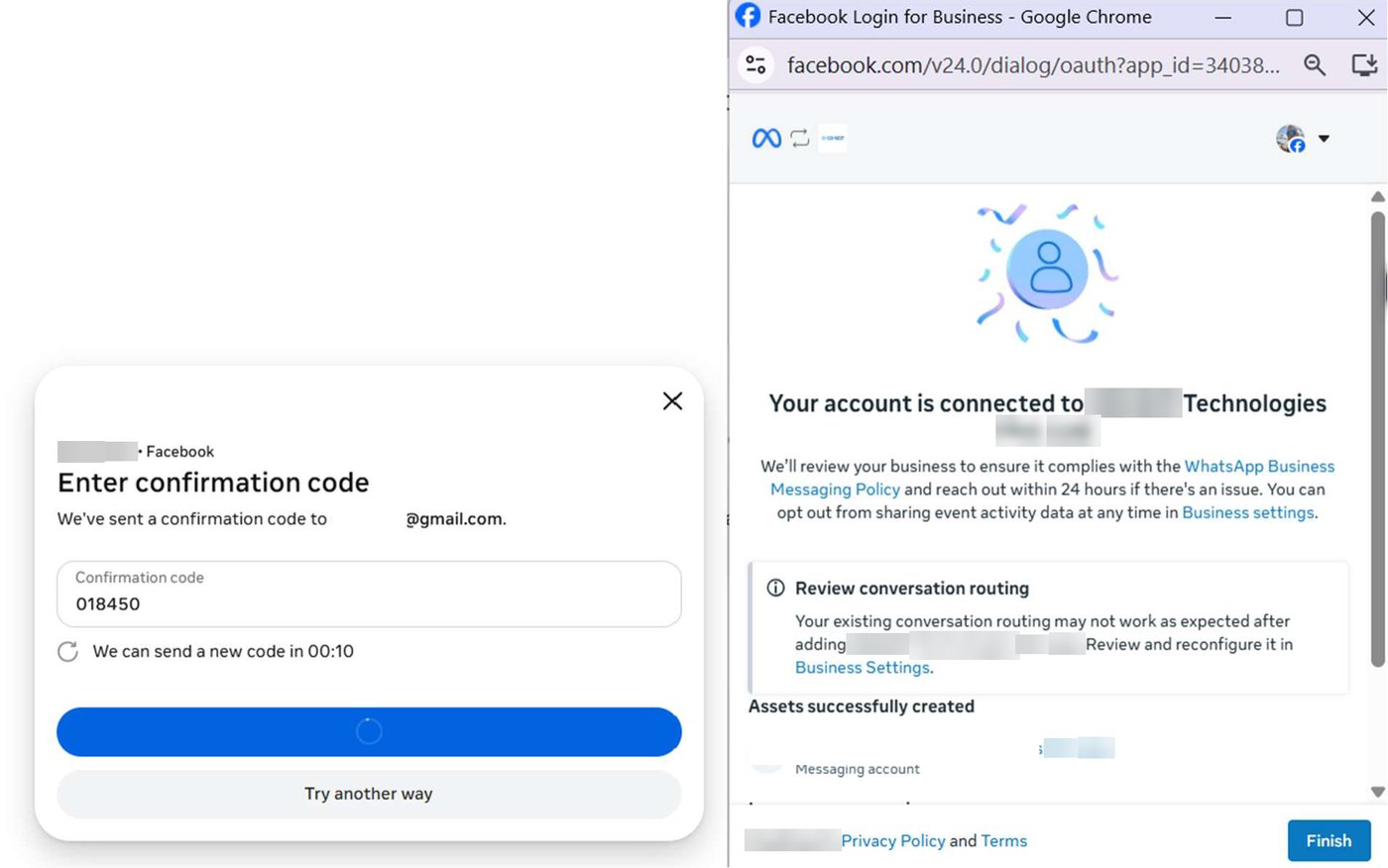
⚠️ If the connection fails
Signs: at step 4 the Next button keeps spinning and doesn't move on, or the Meta window shows the error "A paid messaging account already exists for this partner".
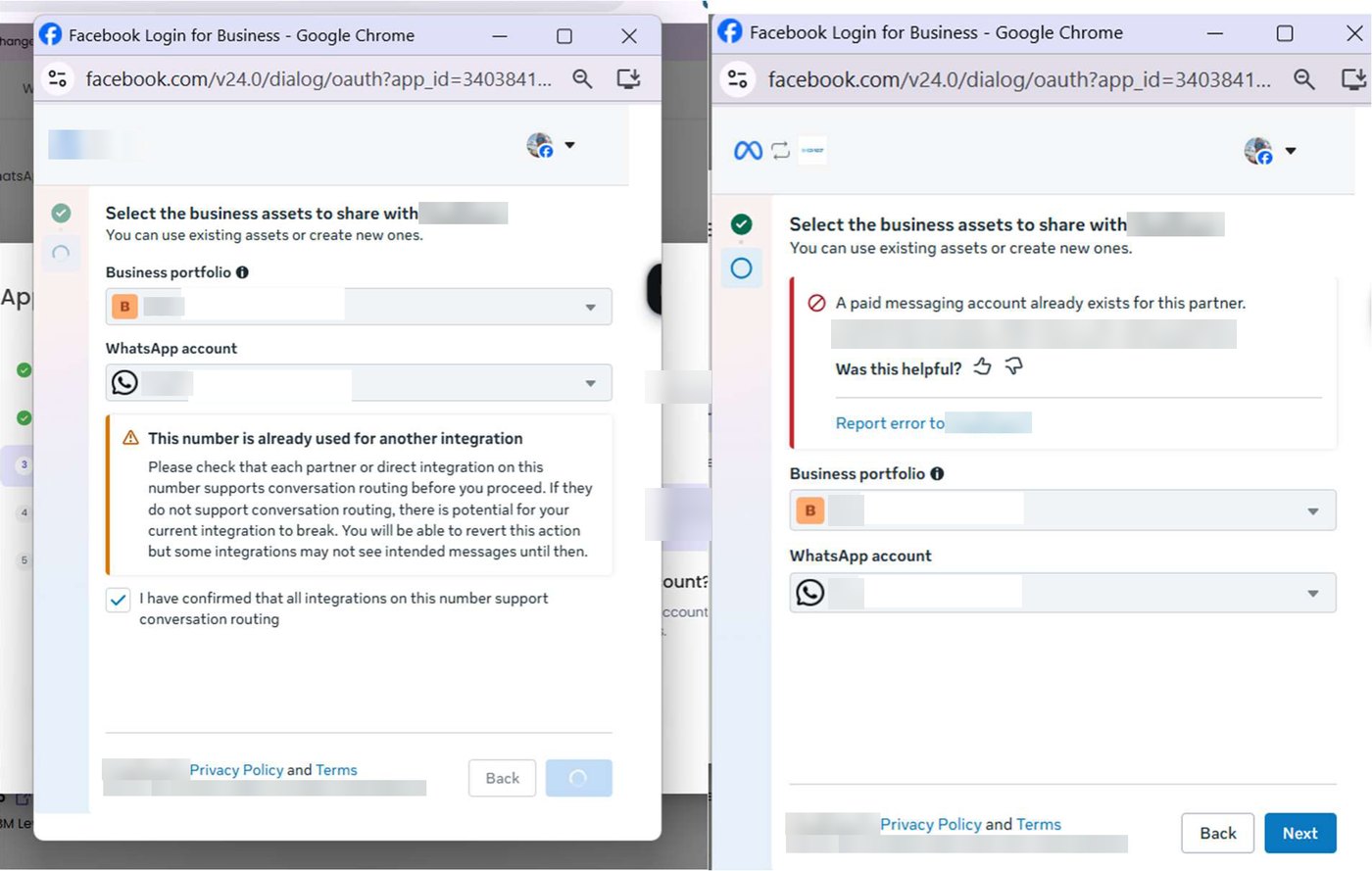
The reason: the number already has a messaging account, and your previous provider added its Meta partners to it. As long as they are there, Meta won't let you create a new messaging account for the number. Here is what to do:
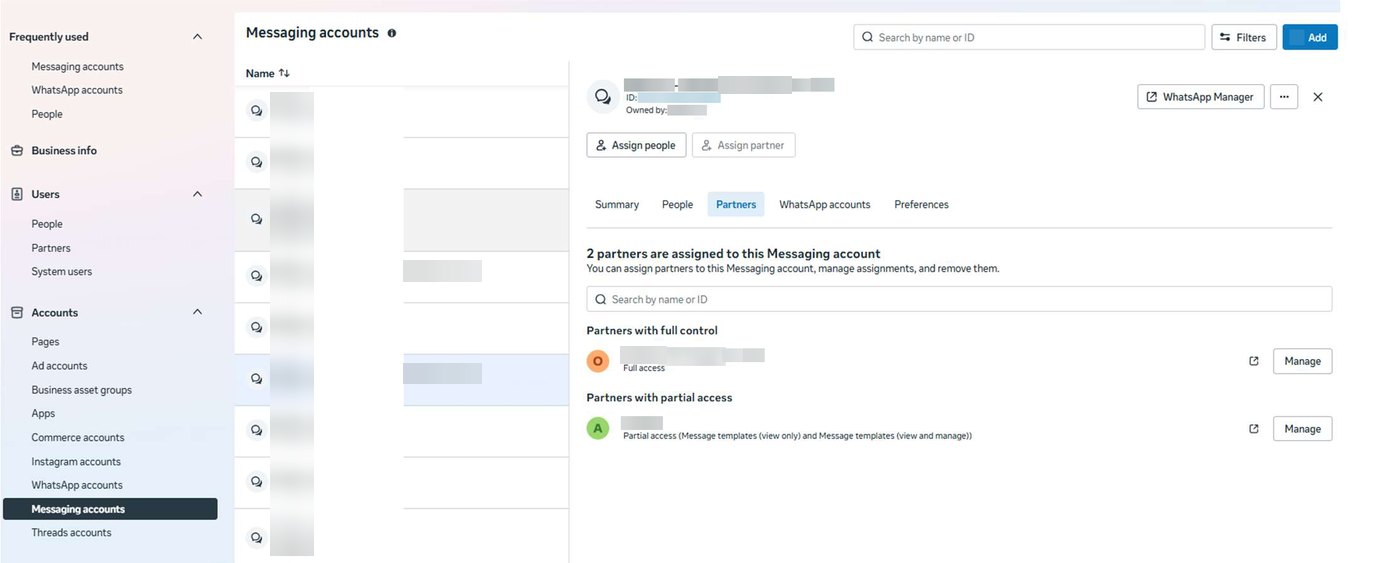
- Open business.facebook.com → Settings → Accounts → Messaging accounts.
- Select the messaging account of your number and open the Partners tab.
- Click Manage next to each partner and remove it. Remove all of them: both the partner with full access and the partner with partial access.
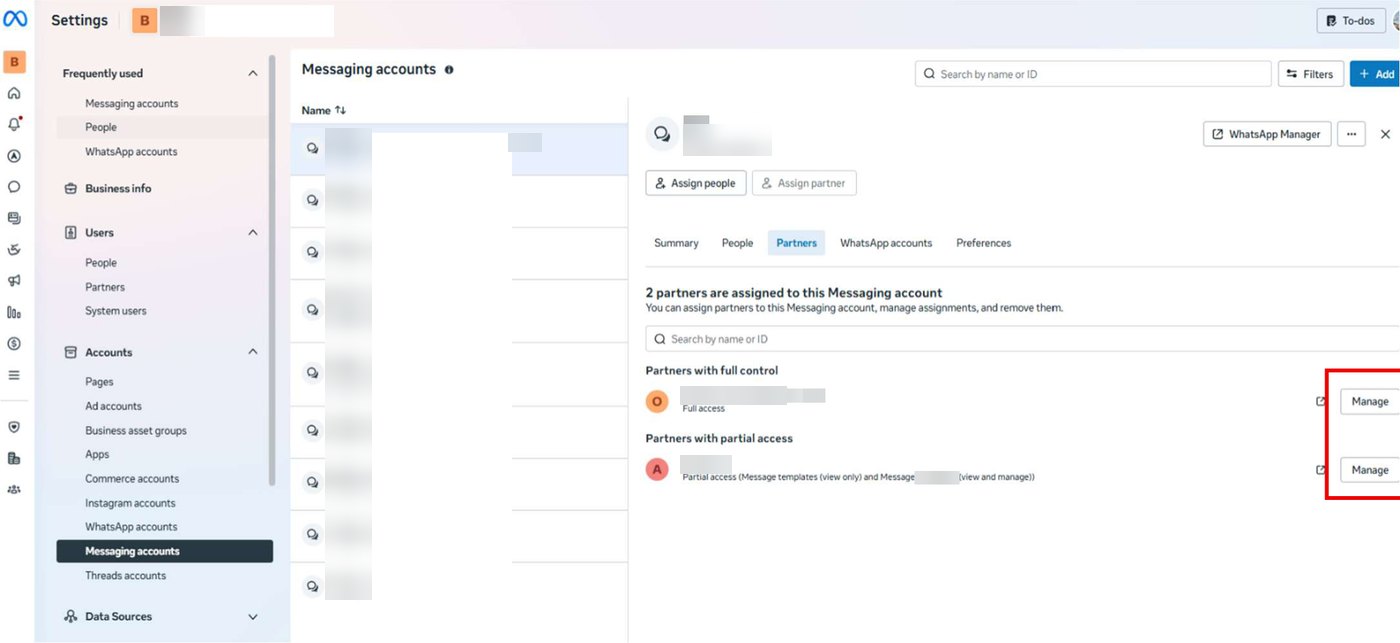
Keep in mind: once the partners are removed, your previous provider can no longer send messages from this number. Do this when you are ready to switch.
- Go back to your WazzaBee dashboard, open Channels and start connecting WhatsApp WABA again. The dashboard will offer the unfinished channel: click "Continue connection".
- Go through the Meta window again, as in steps 2–6.
🔍 How to check that everything is connected
In business.facebook.com → Settings → Accounts → Messaging accounts, the new messaging account shows the new partners on the Partners tab.
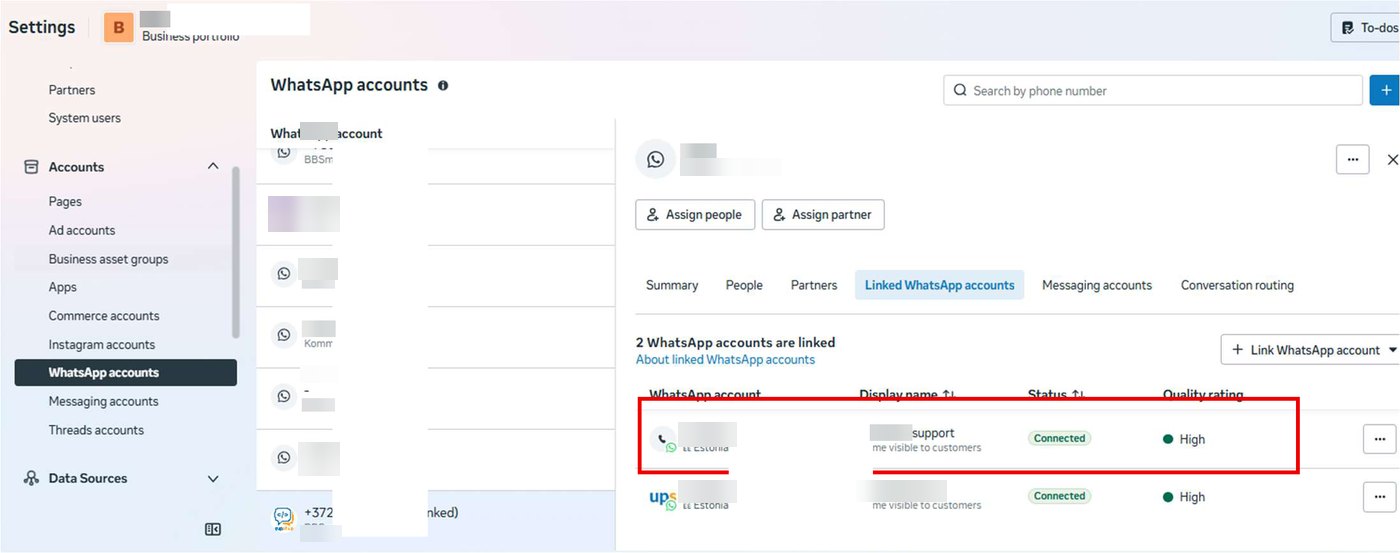
In WhatsApp accounts, the number has the Connected status and its quality rating is unchanged.
💬 What your customers will see
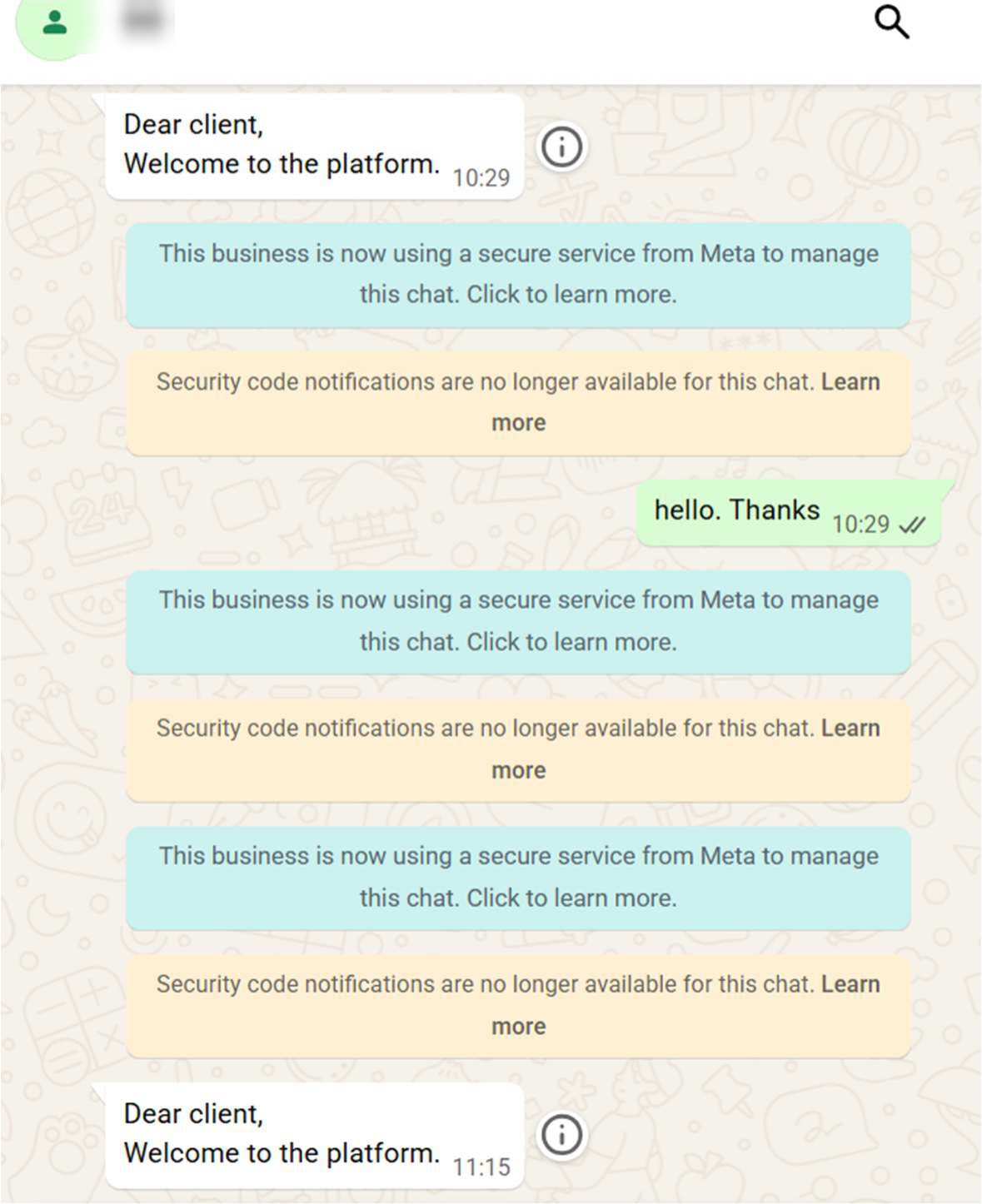
In their chat with you, customers will see WhatsApp system notifications: "This business is now using a secure service from Meta to manage this chat" and "Security code notifications are no longer available for this chat". These are standard Meta messages, and the conversation continues as usual.
📌 After connecting
- Your previous provider stays connected to the number until you disconnect it. To keep incoming messages from splitting between two systems, remove its partners from the old messaging account or ask the previous provider to disconnect the number.
- Conversations stored only in your previous provider's interface do not move over to us. If your agents worked in Bitrix24 or amoCRM, the conversations stay in your CRM.
- How to move your CRM and old chats: Switching to WazzaBee from another service.
❓ FAQ
Do I need to remove the two-step verification PIN?
No. Under Meta's new process, the number isn't transferred, it gets one more connection, so the PIN doesn't get in the way.
Will the number stop working while it is being connected?
No. The number keeps receiving and sending messages, and your customers lose nothing.
How long does the connection take?
15 minutes. If Meta shows the error from the section above, allow extra time to remove the previous partners.
What if it doesn't work?
Open a ticket from your dashboard and attach a screenshot of the Meta window, and we will look into your case.