
What a menu bot is
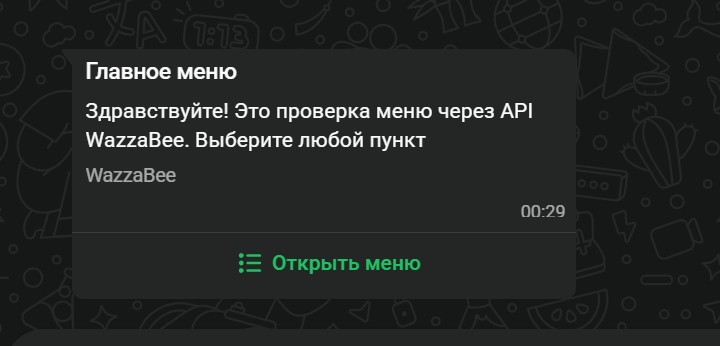
A menu bot replies to the customer in WhatsApp with a menu and acts on the chosen item: sends text and files, opens the next menu, calls a manager, adds a tag, creates a CRM deal. The customer finds prices, services, the address or books on their own, and a manager steps in when really needed.
Where it works
- On WhatsApp Business API, Telegram bot, Instagram and Messenger lines.
- In a Telegram bot the menu comes as buttons under the message, with no 24-hour limit. In Instagram and Messenger the menu comes as quick replies: up to 13 buttons, labels up to 20 characters, the buttons disappear after the next message, and in Instagram they are visible only in the mobile app. Instagram and Messenger have no location request.
- Only in reply to the customer's message, within 24 hours of it. This is a WhatsApp rule: a menu can't be sent first or in a broadcast; for that there are templates with buttons (up to 10 quick reply buttons, Templates → HSM (WABA)).
- No template and no Meta approval are needed for a menu bot.
Where to set it up
Dashboard → Templates → Menu bots tab. Choose a line and click Create bot. The list shows whether the bot is on, how it starts, and how many starts and item picks it had in the last 30 days.
The editor
On a computer the bot is a flow: the first message on top, and under each item what the bot replies. Click a message in the flow, and its settings and a "What the customer sees" preview open on the right. On a phone the same flow is shown as a list: tap a message and the settings open from the bottom.
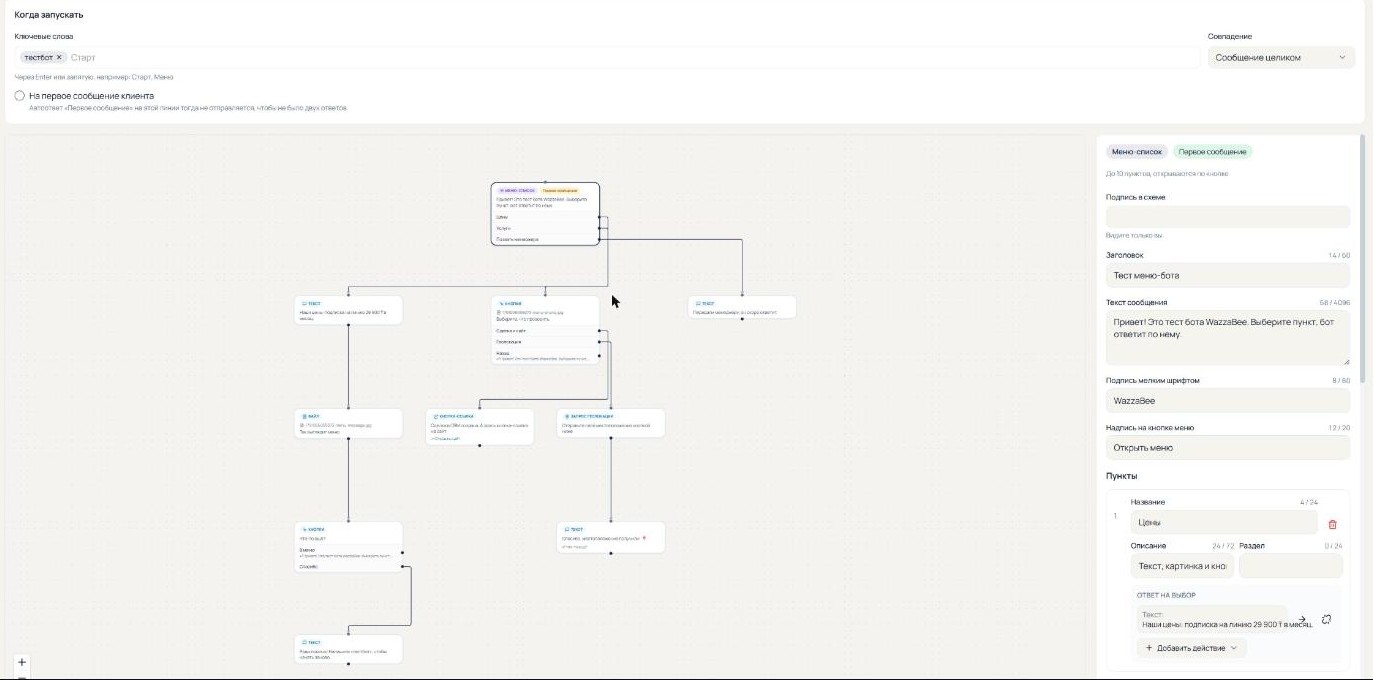
Each field has a character counter, so WhatsApp limits are visible as you type. If something is wrong, the message is highlighted in red in the flow, and a bot with errors can't be turned on.
When the bot starts
- Keywords, e.g. "Start" or "Menu". The "Whole message" match fires only if the customer wrote exactly that word. "Word inside the message" also fires on "Show me the menu, please". Letter case doesn't matter.
- On the customer's first message: the bot greets every new customer. The "First message" auto-reply on this line is then skipped, so there aren't two replies.
- Manually from a chat: in a WhatsApp Business API chat there is a "Send menu" button next to the templates button. The agent picks a bot, and its first message goes to the customer. The button is visible while the 24-hour window is open.
Message types
| Type | What the customer sees | WhatsApp limits |
|---|---|---|
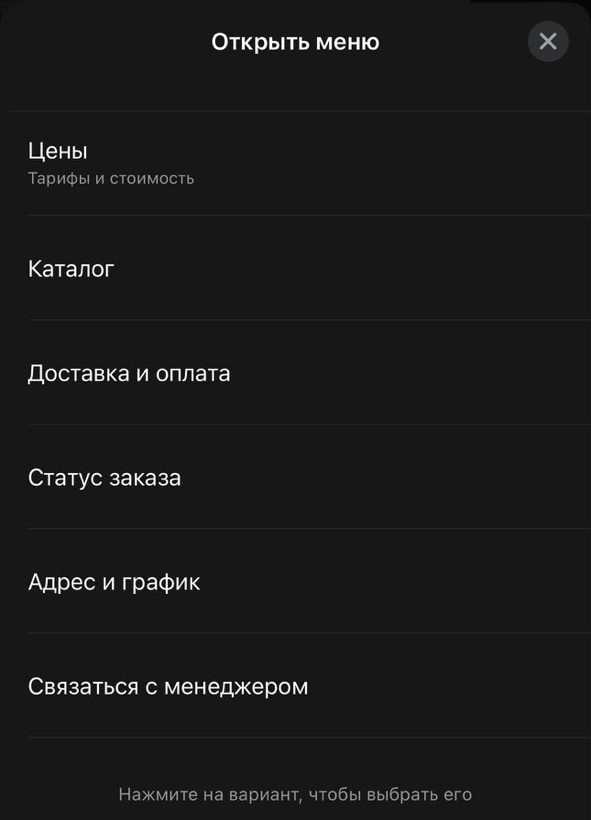
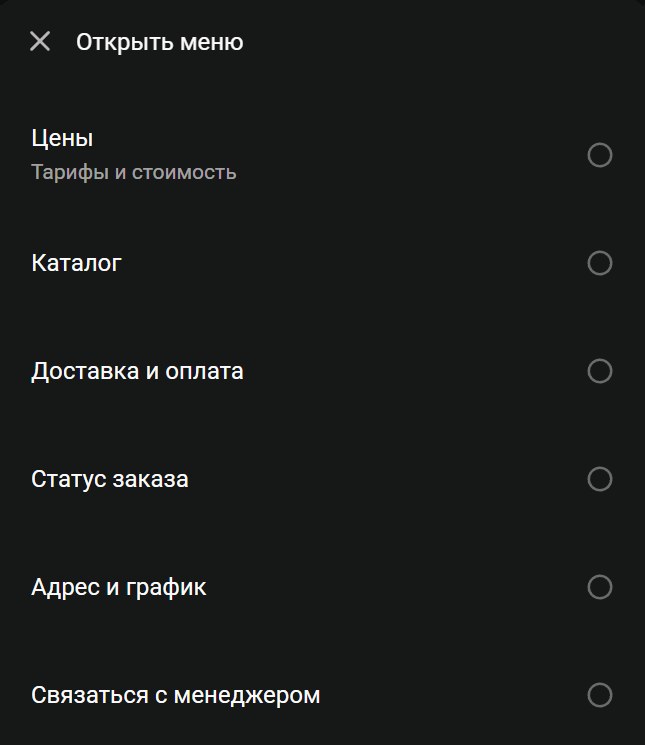
| List menu | A button, e.g. "Open menu". Tapping it opens a list of items | up to 10 items, item title up to 24 characters, description up to 72, text up to 4096 |
| Buttons | Buttons right under the message, with an optional image, video or PDF on top | up to 3 buttons, label up to 20 characters, text up to 1024 |
| Link button | One button that opens a website | label up to 20 characters |
| Location request | A "Send location" button | text up to 1024 characters |
| Text | A regular message | up to 4096 characters |
| File | An image, video or PDF with a caption | up to 15 MB; JPG, PNG, MP4, PDF |
After a text, a file or a location, the bot can continue on its own: for example, send the price list followed by "Back to menu" and "Thanks" buttons.
What the bot does on an item
- Reply: a new message of any type, or a jump to an existing one, e.g. "back to the main menu".
- Hand off to a manager: the chat gets a "Waiting for manager" label with the reason, and the account owner gets a push. Menu buttons keep working for the customer, and the label stays until a manager replies.
- Add a chat tag, e.g. "Hot lead".
- CRM deal: the customer's open deal in the chosen funnel moves to the stage, and if there is none, a new one is created. The deal history shows that the bot did it.
- End the bot.
One item can have several actions, e.g. "hand off to a manager", "add a tag" and the message "We've passed you to a manager, they'll reply soon".
The bot, auto-replies and the AI bee
The bot replies first. While the customer taps menu items, the bee stays silent. If the customer types their own question instead of picking an item, the bee replies, if it is connected to this line. Bot messages don't clear the "Waiting for manager" label: only a human reply does.
Variables in messages
You can insert a variable into a message, and the bot fills in the value when sending. Every message has an Insert variable button in its settings.
{{имя}}: the customer's WhatsApp name. If the customer has a number instead of a name, the variable is skipped: "Hello, {{имя}}!" becomes "Hello!".{{имя|friend}}: after the bar comes a fallback value used when there is no name.{{телефон}}: the customer's number.- Bot variables: the Variables button in the editor's top bar. E.g. enter your address once and write
{{address}}in messages. Change the value and it changes in every message of the bot.
What the agent sees
In the chat, bot messages are shown with their items and buttons, the way the customer saw them. The customer's choice arrives as a regular incoming message with the item title.
Via API
The same messages can be sent from your own system via the API: menus and buttons without a template.